HowToForYou.com – Apple has traditionally limited how external devices interact with the iPhone, especially when it comes to remote control. For years, users could only mirror their screens rather than fully operate their devices from a computer. That has started to change with newer system updates, while alternative methods still fill the gaps for older devices and Windows users.
This guide explains how to control your iPhone from a computer, outlining the most effective methods available today and when each one is worth using.
How to Use iPhone Mirroring on Mac (Full Control)
The most advanced option currently available is Apple’s built-in iPhone Mirroring feature. It allows full interaction with your iPhone directly from your Mac, including opening apps, typing messages, and navigating the interface.
Requirements
- iPhone running iOS 18 or later
- Mac running a compatible recent macOS version
- Wi-Fi and Bluetooth enabled on both devices
Steps
- Open the iPhone Mirroring app from your Mac’s Dock
- Unlock your iPhone when prompted
- Choose whether to allow notifications on your Mac
- Click “Get Started” and authenticate with your Mac login
- Lock your iPhone to begin the session
- Wait for the devices to connect
Once connected, your iPhone appears as a fully interactive window on your Mac.
Key Insight
This is currently the only native Apple feature that offers true control rather than just screen viewing, making it the best option for productivity and multitasking.
How to Mirror Your iPhone Screen Using QuickTime (Mac Only)
If your system doesn’t support iPhone Mirroring, QuickTime provides a reliable alternative for screen sharing.
What It Does
- Displays your iPhone screen on your Mac
- Allows screen recording
- Does not allow remote control
Steps
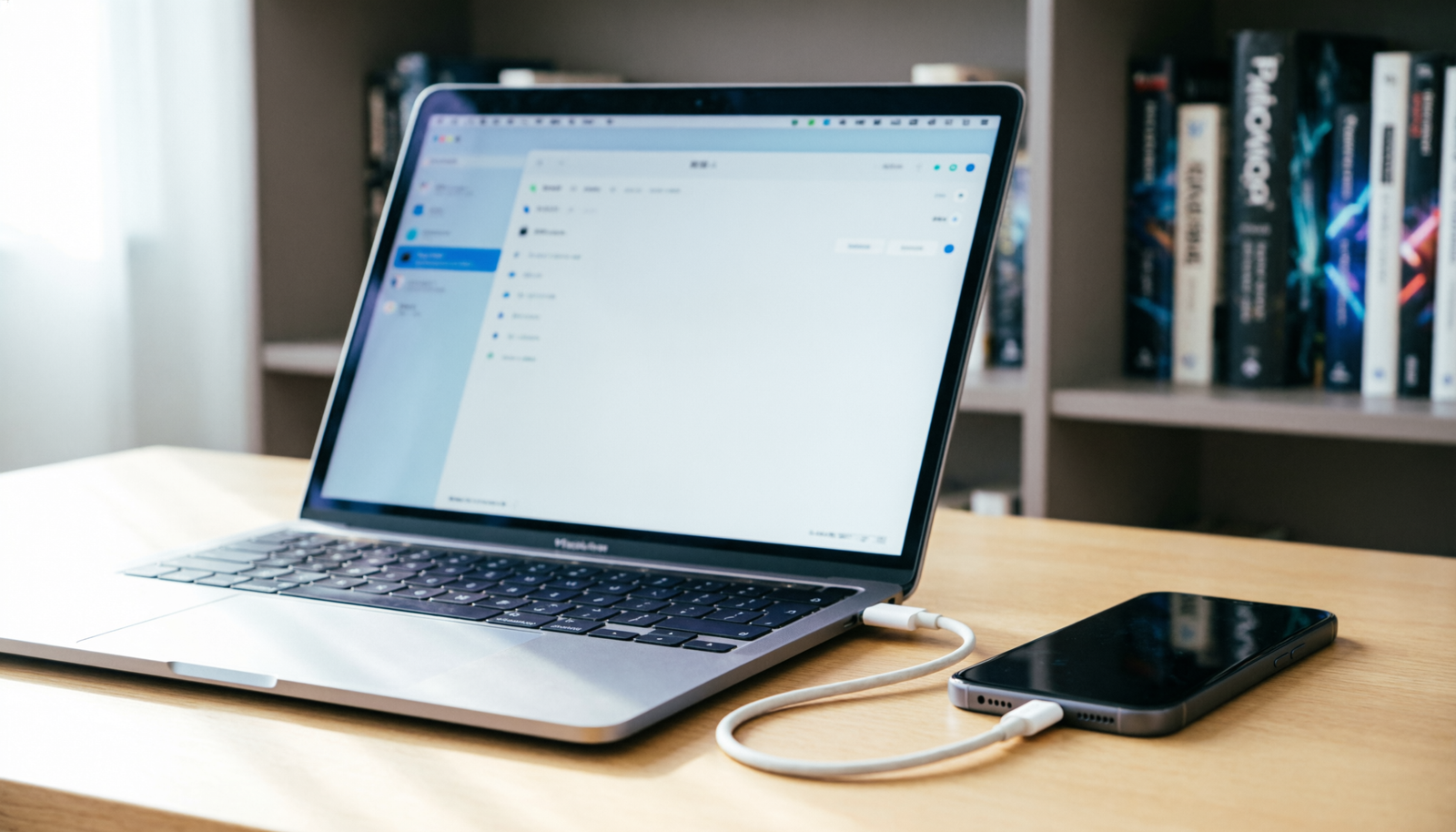
- Connect your iPhone to your Mac using a USB cable
- Open QuickTime Player
- Select “New Movie Recording”
- Choose your iPhone as the video source
When to Use It
QuickTime is ideal for recording tutorials, presentations, or viewing content on a larger display.
How to Connect Your iPhone to Windows with Intel Unison
Windows users have fewer options, but Intel Unison offers a practical way to integrate iPhone functions with a PC.
Features
- Send and receive text messages
- View notifications
- Make and receive calls
- Transfer files between devices
Setup Overview
- Install Intel Unison on both your iPhone and Windows PC
- Enable Wi-Fi and Bluetooth on both devices
- Open the app on your PC and scan the QR code using your iPhone
- Confirm pairing on both devices
Limitation
You cannot fully control your iPhone interface. Instead, the app focuses on communication and file sharing.
How to Remotely View an iPhone Using TeamViewer
For remote support or troubleshooting, TeamViewer is one of the most widely used solutions.
What It Offers
- Live screen sharing from an iPhone
- Remote guidance capability
- Cross-platform compatibility
Important Limitation
Direct control is not possible. The iPhone user must perform all actions manually.
Best Use Cases
- Helping someone fix a device remotely
- Providing technical support
- Demonstrating steps visually
How to Mirror Your iPhone Wirelessly with AirPlay
AirPlay allows you to mirror your iPhone screen to a Mac without using cables.
Steps
- Enable AirPlay Receiver on your Mac
- Open Control Center on your iPhone
- Tap “Screen Mirroring”
- Select your Mac and enter the passcode
What You Get
- Wireless screen sharing
- Real-time display
Limitation
No remote control functionality is included.
Other Options to Consider
Some additional Apple features improve cross-device interaction, even if they don’t provide full control:
- Handoff: Continue tasks between your iPhone and Mac
- Switch Control: Enables shared input devices for accessibility use cases
These tools are more specialized but can enhance workflow continuity across devices.
Final Thoughts
If your goal is complete control, iPhone Mirroring on Mac is currently the only solution that delivers a full experience within Apple’s ecosystem.
Other methods fall into two categories:
- Screen viewing (QuickTime, AirPlay, TeamViewer)
- Partial integration (Intel Unison)
The right approach depends on what you need. For full control, use Apple’s latest tools. For flexibility across platforms, especially on Windows, third-party solutions still play an important role.
Read More :