
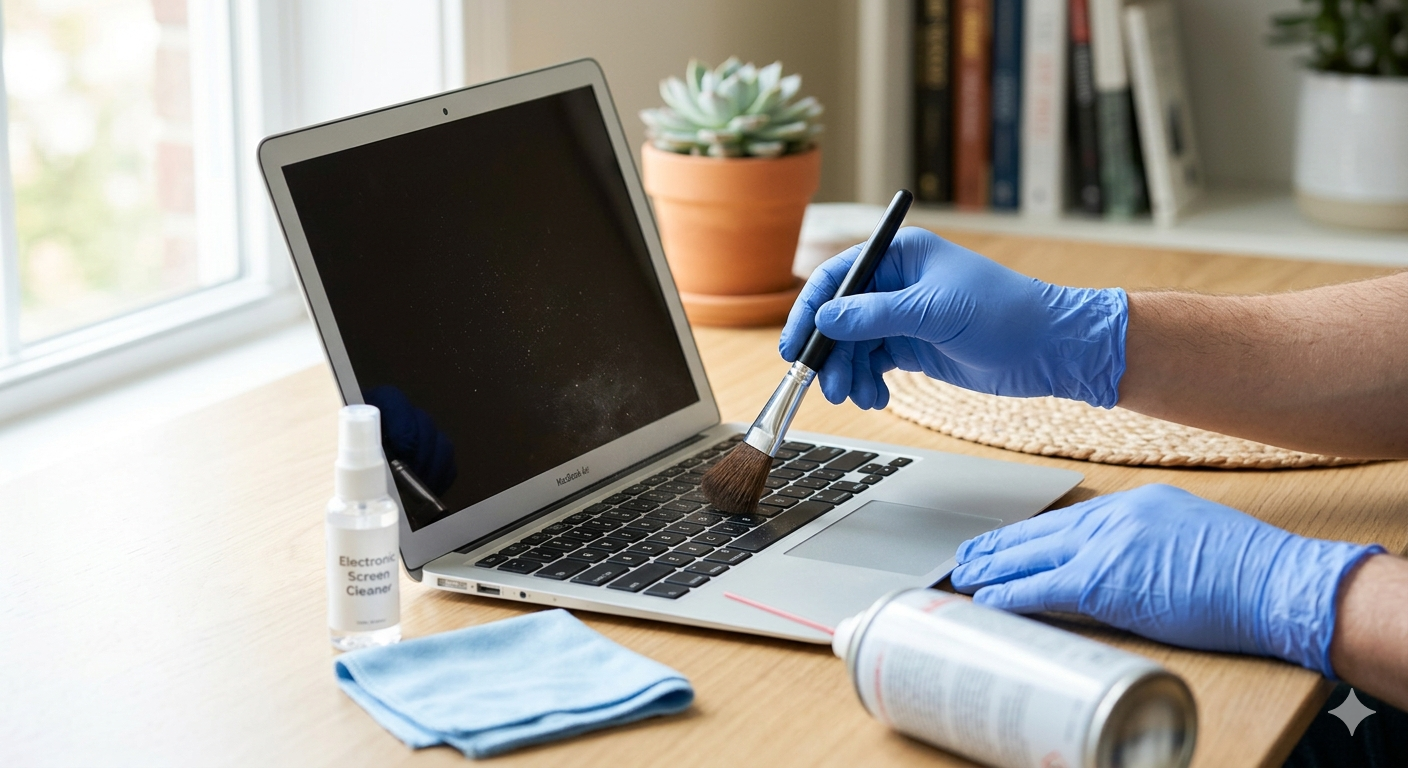
HowToForYou.com – Keeping a laptop clean isn’t just about appearance. Dust, oils, and debris can quietly affect performance, shorten hardware lifespan, and even lead to overheating. If you carry your device everywhere or use it daily, a proper cleaning routine matters more than most people realize.
This guide explains how to clean a laptop safely and effectively, with practical insights that go beyond the basics so you can protect your device long-term.
Why Regular Laptop Cleaning Matters
Over time, laptops collect more than visible dirt. Skin oils, food particles, and airborne dust build up in places you don’t see.
Here’s what that can lead to:
- Reduced airflow and overheating
- Sticky or unresponsive keys
- Screen visibility issues from smudges
- Faster wear on internal components
If you use your laptop daily, a light clean every 2–4 weeks is a good habit.
Before You Start: Basic Safety Steps
Never skip this part. Cleaning a powered device can cause serious damage.
- Shut down the laptop completely
- Unplug the charger and all accessories
- Remove the battery if possible
- Let the device cool down
This protects both you and the internal components.
How to Clean a Laptop Screen
Laptop screens are delicate, especially modern anti-glare and touchscreen panels.
Step-by-step:
- Remove loose dust first
Use a microfiber cloth and gently wipe across the screen. Avoid applying pressure. - Handle smudges carefully
Lightly dampen a cloth with distilled water. It should be barely moist. - Wipe in circular motions
This helps lift oils without leaving streaks. - Dry and polish
Use a dry section of the cloth to finish.
What to avoid:
- Glass cleaners with ammonia
- Spraying liquid directly on the screen
- Paper towels or rough fabrics
If your laptop has a touchscreen, always check manufacturer recommendations before using any solution.
How to Clean a Laptop Keyboard
Keyboards collect the most dirt due to constant contact.
Step-by-step:
- Shake out debris
Turn the laptop upside down and gently tap it to dislodge crumbs. - Remove dust with airflow or suction
Use compressed air or a small handheld vacuum. Keep airflow angled outward. - Clean key surfaces
Use a slightly damp cloth or a cotton swab with a small amount of rubbing alcohol. - Detail between keys
A dry cotton swab works well for tight spaces.
Extra insight:
Sticky keys are usually caused by oil buildup. A small amount of isopropyl alcohol helps dissolve it effectively.
How to Clean the Laptop Exterior (Case and Ports)
The outer shell and ports are often overlooked but equally important.
Step-by-step:
- Prepare a mild cleaning solution
Mix distilled water with a drop of dish soap or use diluted alcohol. - Wipe the surface
Use a damp (not wet) cloth to clean the case. - Clean tight areas
Use cotton swabs for seams and edges. - Clear ports and vents
Blow dust out using compressed air. - Dry and polish
Finish with a microfiber cloth for a clean look.
Be careful with:
- Letting moisture enter ports
- Using harsh chemicals like bleach or ammonia
- Scratching surfaces with sharp objects
Common Mistakes to Avoid
Even careful users make these mistakes:
- Spraying liquid directly onto the laptop
- Using too much water or alcohol
- Cleaning while the device is still on
- Ignoring vents and airflow areas
- Using household cleaners not designed for electronics
These errors can lead to costly damage.
A Smarter Cleaning Routine
Basic cleaning helps, but a smarter routine keeps your laptop in better condition over time:
- Wash your hands before using your laptop
- Avoid eating over the keyboard
- Use a keyboard cover in dusty environments
- Store your laptop in a protective sleeve when traveling
- Do a deeper clean every 2–3 months
Final Thoughts
Cleaning your laptop properly is simple but important. With the right approach, you can improve performance, extend its lifespan, and keep it looking professional.
Consistency matters more than effort. A few minutes of regular care can prevent bigger problems later.
Read More :