
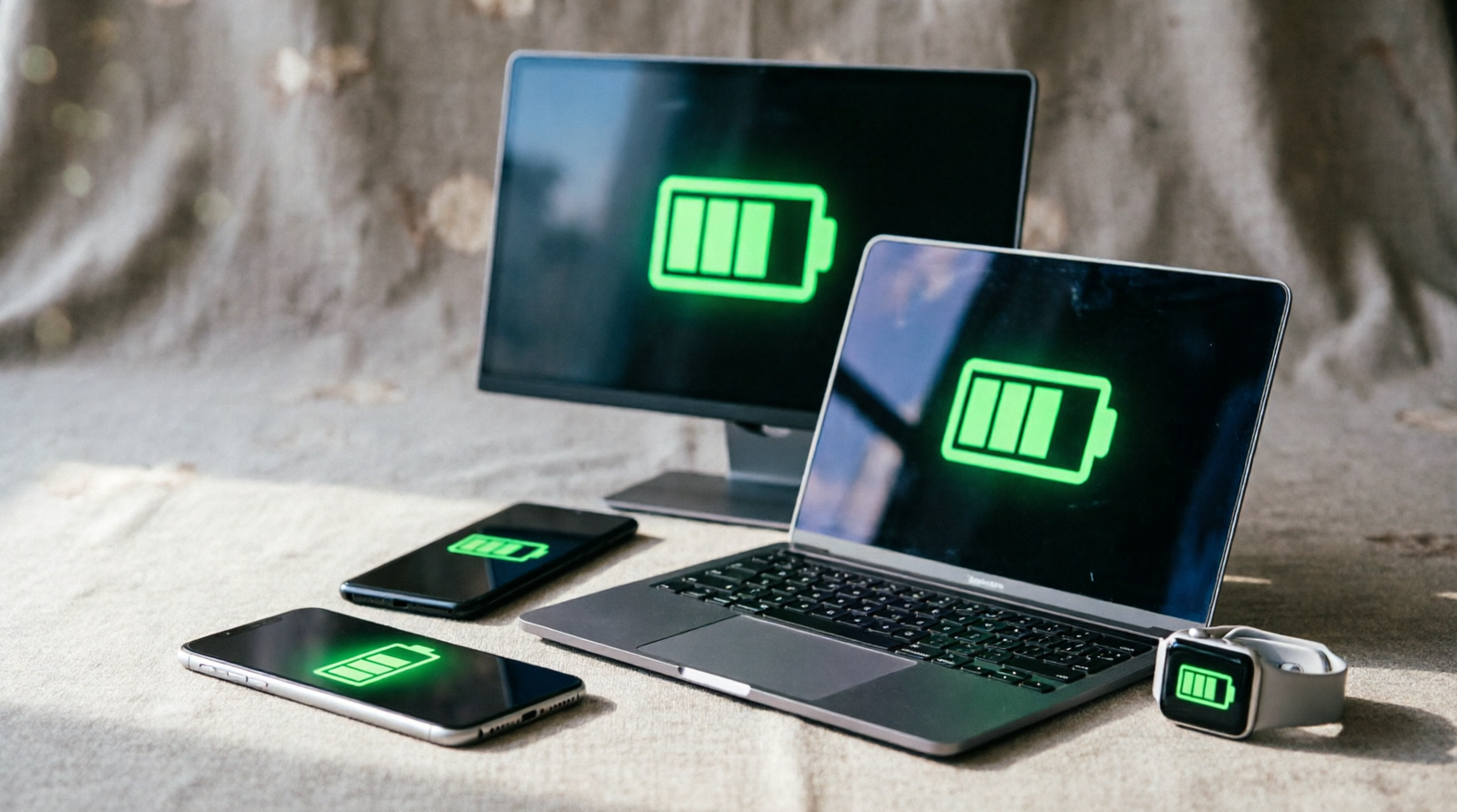
HowToForYou.com – Low Power Mode is one of the easiest ways to extend battery life when your device is running low. Whether you’re using an iPhone, Android phone, MacBook, Apple Watch, or Windows PC, this feature limits background activity and reduces power consumption to help your battery last longer.
However, keeping Low Power Mode enabled all the time can also reduce your device’s overall performance. You may notice slower downloads, limited background app refresh, reduced visual effects, delayed notifications, or lower processing speeds. If your battery is sufficiently charged, disabling Low Power Mode allows your device to operate at its full capability.
This guide explains how to turn off Low Power Mode across the most popular devices while also explaining what changes after you disable it.
Why Turn Off Low Power Mode?
Battery-saving features are useful in emergencies, but they intentionally restrict certain functions to conserve energy. Depending on your device, disabling Low Power Mode can restore:
- Faster system performance
- Full processing power
- Background app refresh
- Automatic downloads
- Higher screen brightness
- Improved visual effects and animations
- Better network performance, including 5G on supported devices
- More responsive multitasking
If battery life is no longer a concern, switching back to normal power mode delivers a smoother experience.
How to Turn Off Low Power Mode on iPhone and iPad
Apple offers two simple methods for disabling Low Power Mode.
Method 1: Use the Settings App
- Open Settings.
- Scroll down and tap Battery.
- Find Low Power Mode.
- Tap the toggle to turn it off.
Once disabled, the switch will no longer appear active, and your iPhone or iPad returns to standard performance.
Method 2: Use Control Center
For a quicker option:
- Open Control Center.
- On iPhone X or newer, swipe down from the top-right corner.
- On older iPhones, swipe up from the bottom of the screen.
- Tap the Battery icon.
- The icon changes back to its normal color, indicating Low Power Mode is off.
Tip: If the battery icon isn’t available in Control Center, you can add it through the Control Center customization settings.
How to Turn Off Low Power Mode on Apple Watch
Apple Watch also includes a battery-saving mode that can be disabled in two ways.
Method 1: Through Control Center
- Swipe up to open Control Center.
- Tap the Battery Percentage icon.
- Turn off Low Power Mode.
Method 2: Through Settings
- Press the Digital Crown.
- Open Settings.
- Tap Battery.
- Switch Low Power Mode off.
The watch immediately resumes normal performance and feature availability.
How to Turn Off Power Saving Mode on Android
Android manufacturers may use different menu names, but the process is generally similar.
- Open Settings.
- Tap Device Care, Battery, or Battery & Device Care (depending on your phone).
- Select Battery.
- Open Power Saving Mode.
- Turn the feature off.
Some brands like Google Pixel, Samsung, OnePlus, Xiaomi, and Motorola may place the battery-saving option in slightly different locations, but it is typically found within the Battery settings.
How to Turn Off Low Power Mode on Mac and MacBook
MacBooks running recent versions of macOS include a Low Power Mode designed to maximize battery life.
Follow these steps:
- Click the Apple menu.
- Open System Settings (or System Preferences on older versions).
- Select Battery.
- Choose Battery again if another battery menu appears.
- Locate Low Power Mode.
- Change the setting to Never or disable it.
Once turned off, macOS allows the processor and graphics system to operate without battery-saving restrictions.
How to Turn Off Battery Saver on Windows PC
Windows includes several power profiles that influence battery life and system performance.
To disable Battery Saver:
- Open the Start menu.
- Click Settings.
- Select System.
- Open Power & Battery or Power.
- Choose a power profile such as:
- Balanced
- Best Performance
Avoid using Best Power Efficiency if you want maximum system performance.
On some Windows laptops, you can also disable Battery Saver directly from the battery icon on the taskbar.
What Happens After You Disable Low Power Mode?
Turning off Low Power Mode allows your device to prioritize performance instead of battery conservation. Depending on the platform, you may notice:
- Faster app launches
- Smoother animations
- More consistent background syncing
- Automatic updates resuming
- Improved gaming performance
- Better multitasking
- Enhanced wireless connectivity
The trade-off is increased battery consumption, especially during demanding tasks.
When Should You Leave Low Power Mode On?
Low Power Mode is still beneficial in situations such as:
- Traveling without access to a charger
- Long workdays away from power outlets
- Emergency situations
- Extending battery life before important calls or meetings
- Using older devices with reduced battery health
Many smartphones also enable Low Power Mode automatically when battery levels fall below a certain percentage, helping users squeeze out additional usage time.
Frequently Asked Questions
Does Low Power Mode make devices slower?
Yes. Most devices intentionally reduce processor activity and limit background operations to preserve battery life.
Will disabling Low Power Mode improve performance?
In many cases, yes. Your device regains full processing power, allowing apps and system functions to run more smoothly.
Does Low Power Mode damage the battery?
No. It is a built-in feature designed to reduce energy consumption and can actually help decrease battery wear during heavy usage.
Can I switch Low Power Mode on and off whenever I want?
Yes. You can enable or disable it at any time through your device’s battery or power settings.
Final Thoughts
Knowing how to turn off Low Power Mode helps you get the most from your device when battery life is no longer your top priority. Whether you’re using an iPhone, Android smartphone, Apple Watch, MacBook, or Windows PC, the process takes only a few moments and restores the full range of features and performance.
Low Power Mode remains an excellent tool for extending battery life, but using it only when necessary lets you enjoy faster speeds, smoother multitasking, and the complete experience your device is designed to deliver.
Read More :