
HowToForYou.com – As Microsoft prepares to end support for Windows 10, millions of computers risk falling into obsolescence. But before you rush to replace your aging laptop, there’s a cost-free, eco-friendly solution that can breathe new life into your existing device: ChromeOS Flex.
Google’s ChromeOS Flex is a lightweight operating system designed specifically to run efficiently on older hardware. It delivers the simplicity, security, and speed of a Chromebook — without requiring you to purchase a new one. With just a USB drive and a bit of patience, you can transform your outdated Windows laptop into a modern machine ready for the cloud-first world.
Why ChromeOS Flex Is the Smart Choice for Aging Laptops
When Windows 10 reaches its end-of-life phase, unsupported systems will no longer receive critical security updates, leaving them vulnerable. For many users, upgrading to Windows 11 isn’t an option, as it demands newer hardware specifications. ChromeOS Flex offers a clean break from those limitations.
For You :
Built on the Linux-based ChromeOS platform, ChromeOS Flex is optimized for speed and simplicity. It boots quickly, updates automatically, and relies heavily on web-based applications — making it ideal for everyday users who spend most of their time online.
In essence, ChromeOS Flex turns your old PC into a Chromebook clone, offering the same sleek interface and cloud integration as Google’s native devices.
What You’ll Need
Before you begin, ensure you have the following:
For You :
-
A Windows 10 laptop (even from several years ago)
-
A USB flash drive with at least 8GB of space
-
A stable internet connection
For You :
-
A Google account
Step-by-Step: Transforming Your Windows Laptop into a Chromebook
1. Prepare Your Device
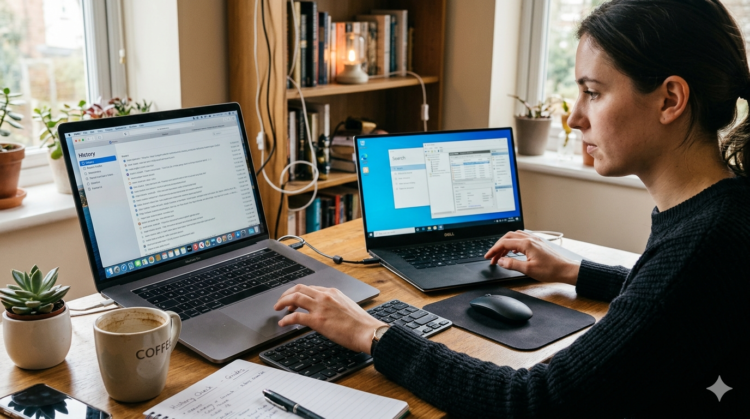
Confirm that your laptop can’t upgrade to Windows 11 or that you prefer not to. Back up all essential data before proceeding, as installing ChromeOS Flex can erase your hard drive.
You can run ChromeOS Flex directly from a USB drive to test compatibility before committing to a full installation — a safe way to ensure everything works properly.
For You :
2. Install the Chromebook Recovery Utility
Open the Google Chrome browser and install the Chromebook Recovery Utility extension. Launch it and choose:
-
Manufacturer: Google ChromeOS Flex
-
Product: ChromeOS Flex
For You :

3. Create the ChromeOS Flex Boot Drive
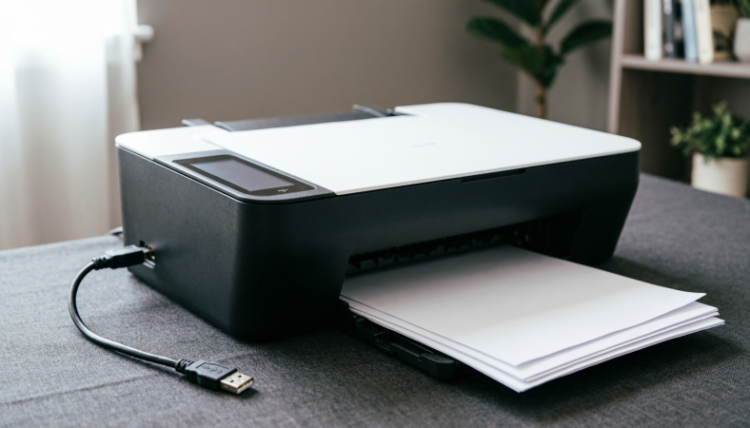
Insert your USB drive and follow the prompts to create your installation media. The process may take several minutes as the software downloads and writes the OS image.
4. Boot from the USB Drive
Restart your laptop and access the BIOS or boot menu (usually by pressing F2, F12, or Esc, depending on the manufacturer). Select your USB drive as the primary boot option.
5. Try ChromeOS Flex Before Installing
You’ll have two choices: “Try it first” or “Install ChromeOS Flex.” Testing allows you to confirm that Wi-Fi, sound, and input devices function correctly before making any irreversible changes.
For You :
6. Install ChromeOS Flex Permanently
If you’re satisfied with the test version, proceed with the installation. Remember — this will wipe your current Windows system, so double-check your backups.
Once the process completes, log in with your Google account and enjoy your new Chrome-powered experience.
7. Reuse or Erase the USB Drive
After installation, you can reuse your boot drive for other devices or erase it through the Chromebook Recovery Utility.
For You :
How ChromeOS Flex Compares to Windows
ChromeOS Flex emphasizes web applications rather than locally installed software. It doesn’t support heavy desktop programs like Adobe Premiere or PC games, but it excels in speed, security, and simplicity.
Unlike Windows, which can accumulate unnecessary background processes over time, ChromeOS Flex keeps things lean and responsive. It’s also immune to most traditional viruses, thanks to its sandboxed architecture and automatic updates.
ChromeOS Flex vs. ChromeOS: What’s the Difference?
While ChromeOS Flex closely mirrors the Chromebook experience, there are a few distinctions:
For You :
-
No Android Apps – Flex doesn’t include the Google Play Store.
-
No Built-in Security Chip – It lacks the proprietary Titan C security module found in Chromebooks.
-
Broader Compatibility – It runs on a wide range of legacy hardware, including MacBooks and older PCs.
For You :
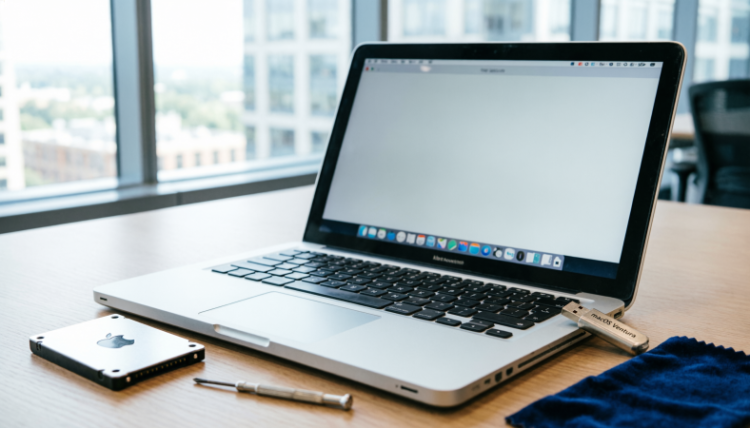
Despite these trade-offs, ChromeOS Flex remains one of the most stable and secure alternatives to Windows 10 for basic productivity, web browsing, and streaming.
The Sustainable Path Forward
By installing ChromeOS Flex, you’re not just saving money — you’re helping reduce electronic waste. Millions of laptops destined for disposal can be repurposed into fully functional devices for students, remote workers, and casual users.
Google’s initiative aligns with the broader trend of sustainability in tech, proving that performance and eco-consciousness can coexist.
For You :
Final Thoughts
Turning your Windows 10 laptop into a Chromebook alternative is a practical and responsible decision in 2025. ChromeOS Flex offers a streamlined, secure, and lightning-fast experience that’s perfect for everyday computing.
If you primarily live in your browser — using tools like Google Docs, YouTube, and Gmail — this lightweight operating system will feel like a breath of fresh air.
Rather than retiring your old device, give it a second life with ChromeOS Flex.
For You :