HowToForYou.com – In competitive gaming and precision-focused tasks, even minor delays can affect performance. One setting that often goes unnoticed is the mouse polling rate. Understanding how it works—and how to adjust it—can help improve responsiveness without requiring new hardware.
This guide explains what mouse polling rate is, how it differs from DPI, and how to change it safely based on your setup.
What Is Mouse Polling Rate?
Mouse polling rate refers to how often your mouse sends position and click data to your computer. It is measured in hertz (Hz), meaning reports per second.
For example:
- 125 Hz equals 8 milliseconds per report
- 500 Hz equals 2 milliseconds
- 1000 Hz equals 1 millisecond
- 8000 Hz equals 0.125 milliseconds
A higher polling rate means your system receives updates more frequently, which can reduce input delay and improve tracking smoothness.
Polling Rate vs DPI
Polling rate and DPI serve different purposes:
- Polling Rate (Hz): How often data is sent to the computer
- DPI (Dots Per Inch): How far the cursor moves per inch of physical movement
Higher DPI increases cursor speed, while a higher polling rate improves responsiveness.
Why Polling Rate Matters
Increasing polling rate can enhance:
- Cursor smoothness
- Input responsiveness
- Accuracy during fast movements
However, higher values are not always beneficial. They may:
- Increase CPU usage
- Reduce battery life on wireless mice
- Provide minimal improvement on lower-end systems
How to Change Mouse Polling Rate
The method depends on your mouse model and software support.
1. Use Built-in Mouse Buttons
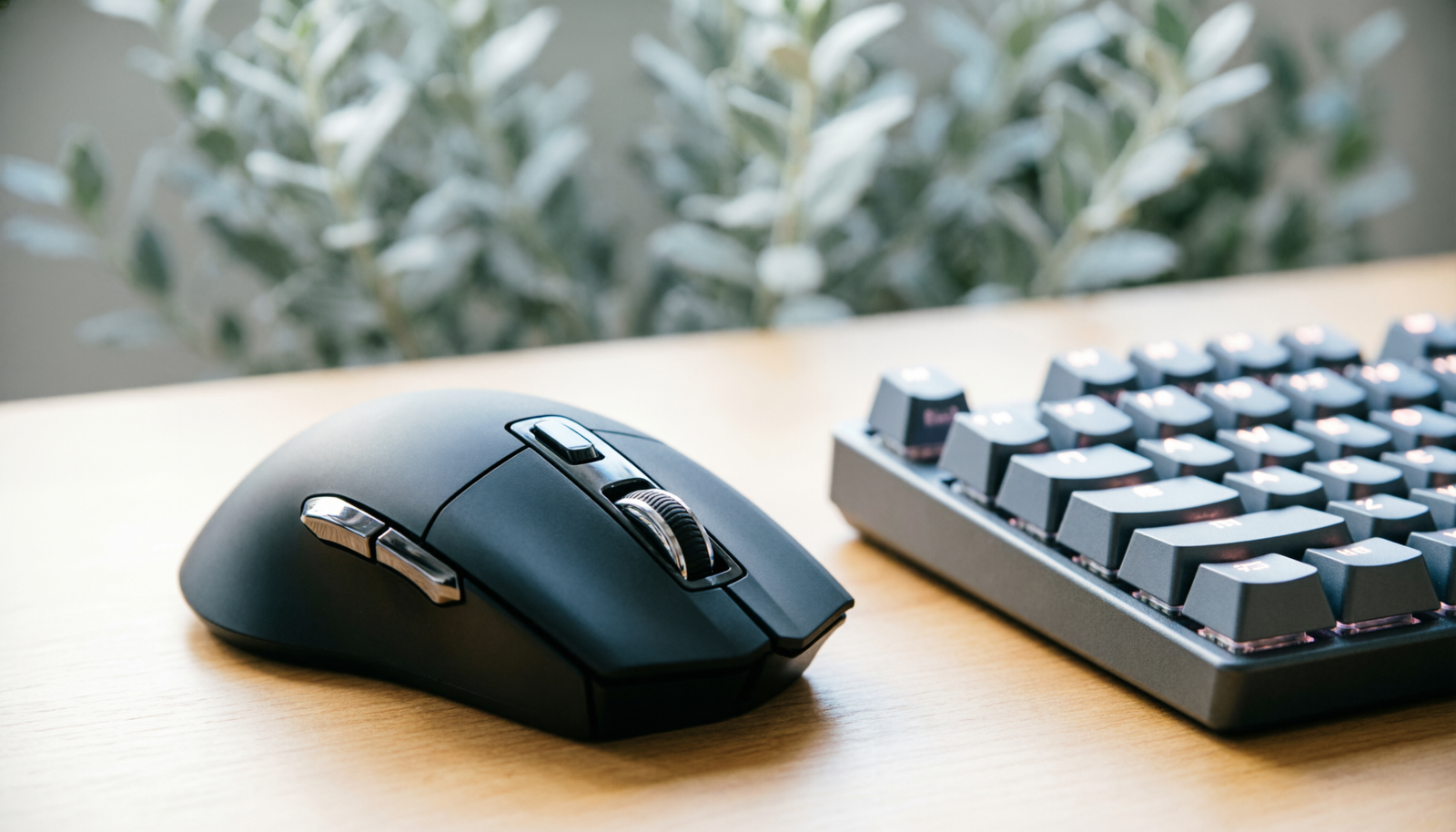
Some gaming mice include physical buttons to switch performance modes. These are typically located near the scroll wheel or on the underside.
Pressing the button cycles through preset polling rates. Some models indicate changes through LED colors.
2. Use Keyboard Shortcuts
Certain mice allow polling rate changes during connection:
- Unplug the mouse
- Hold specific keys on the keyboard
- Plug the mouse back in while holding the keys
Different key combinations correspond to different polling rates, depending on the manufacturer.
3. Use Official Software
Most modern mice offer dedicated software for customization. This is the most reliable method.
Typical steps:
- Install the manufacturer’s software
- Connect your mouse
- Open the performance or sensitivity settings
- Select your preferred polling rate
This method often allows you to save profiles and fine-tune additional settings.
4. Use Third-Party Tools
If your mouse does not support polling rate changes through official software, third-party tools may help modify USB settings.
This approach carries some risk:
- Not all devices are compatible
- Incorrect settings can cause instability
It is best suited for advanced users.
How to Check Your Polling Rate
You can verify your polling rate using an online checker:
- Open a polling rate testing website
- Start the test
- Move your mouse continuously
- Review the average and maximum values
This confirms whether your selected setting is active.
Does a Higher Polling Rate Always Improve Performance?
Not always. The benefit depends on your hardware.
Key factors include:
CPU Performance
A higher polling rate increases data processing demands. If the CPU cannot keep up, performance may suffer.
Monitor Refresh Rate
A low refresh rate display, such as 60 Hz, limits the visible benefit of higher polling rates. Higher refresh monitors show improvements more clearly.
Application Support
Not all games and software can take advantage of extremely high polling rates.
Recommended Settings
- Office or casual use: 125–250 Hz
- General gaming: 500–1000 Hz
- Competitive gaming: 1000–4000 Hz (if supported)
Higher values may offer diminishing returns unless your system is fully optimized.
Final Thoughts
Adjusting mouse polling rate is a simple way to improve responsiveness, but the ideal setting depends on your system and usage. For most users, 500 Hz to 1000 Hz provides a balanced experience without unnecessary strain on hardware.
Testing different settings and observing real-world performance is the best way to find what works for you.
Read More: