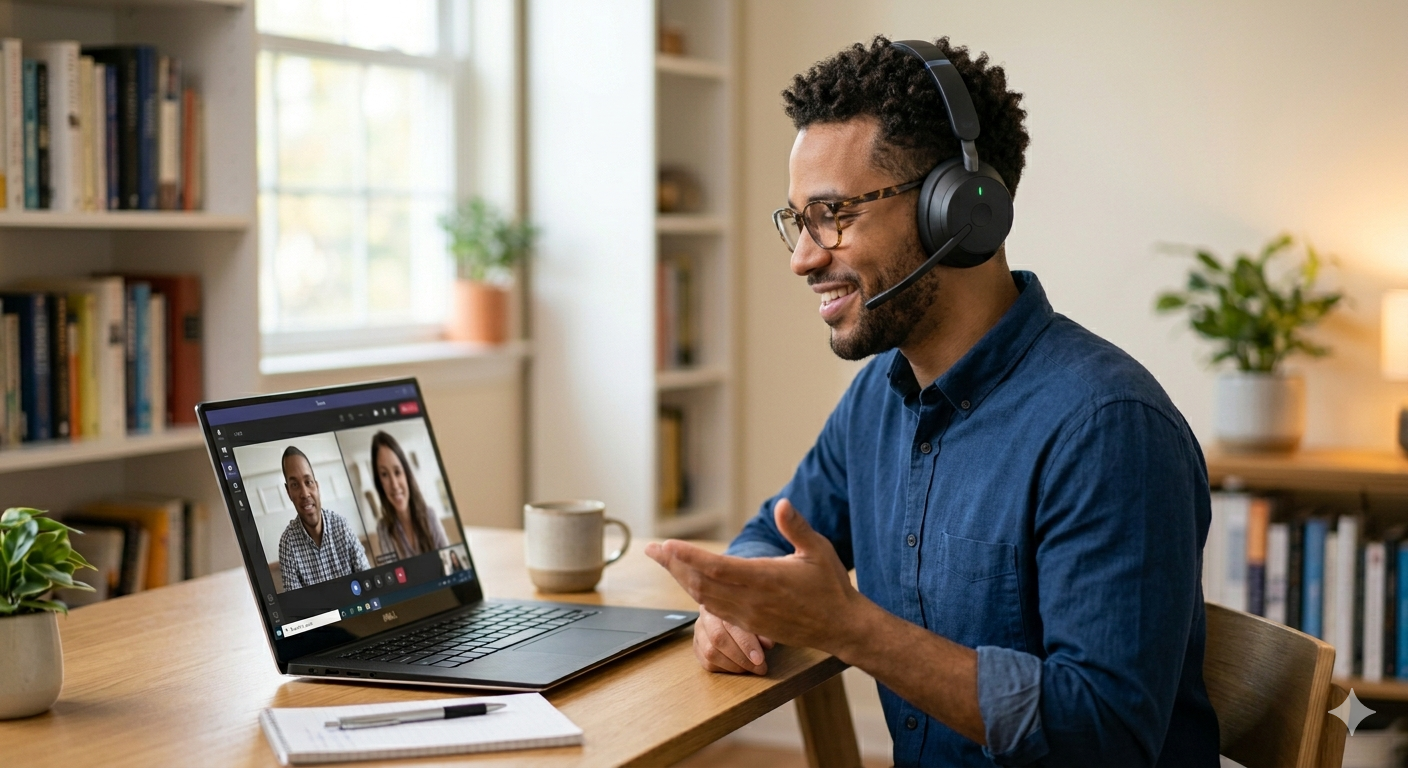
HowToForYou.com – Audio issues during virtual meetings can derail productivity, especially when using platforms like Microsoft Teams. Whether your microphone isn’t picking up your voice or you can’t hear others on a call, these problems are usually tied to simple configuration errors rather than serious technical failures.
This guide takes a deeper, more structured approach to help you understand not just what to fix, but why these issues happen—and how to prevent them in the future.
Why Audio Problems Happen in Teams
Before jumping into solutions, it helps to understand the root causes. Most audio issues fall into three categories:
- Hardware conflicts (incorrect or disconnected devices)
- Software permissions (apps blocked from accessing your microphone or speakers)
- System-level interference (background apps or outdated drivers)
By identifying which category your issue belongs to, you can resolve it faster.
How to Fix Microphone Issues in Microsoft Teams
1. Check If Your Microphone Is Muted
Start with the obvious but often overlooked step. If there’s a slash through the microphone icon during a call, your mic is muted. Toggle it back on and test again.
2. Verify Physical Connections
If you’re using a headset or external mic:
- Ensure it’s properly plugged in or paired via Bluetooth
- Check for physical mute buttons on the device itself
- Reconnect or re-pair the device if needed
A loose connection can mimic more complex issues.
3. Close Competing Applications
Apps like Skype or Google Meet may take control of your microphone. Even browser tabs can interfere.
Shut down any application that might be using audio input in the background.
4. Select the Correct Microphone in Teams
Teams may default to the wrong device, especially on laptops with built-in mics.
- Open Settings within Teams
- Navigate to Devices
- Choose the correct microphone from the list
If your voice sounds distant or unclear, this is often the cause.
5. Adjust Noise Suppression Settings
Noise suppression can improve clarity but may also distort sound in certain environments.
- Use High in noisy surroundings
- Switch to Low if you’re playing background audio
- Turn it Off in quiet settings for more natural sound
6. Check System Permissions
Your operating system must अनुमति Teams to access your microphone:
- Windows: Enable mic access under Privacy settings
- macOS: Allow Teams under Security & Privacy > Microphone
- Browser/Chromebook: Set mic access to “Allow” for Teams
Without proper permissions, your mic won’t function at all.
7. Restart and Test
A simple restart often clears temporary glitches. After rebooting:
- Test your microphone in system sound settings
- Watch input levels to confirm detection
If your system doesn’t detect input, the issue goes beyond Teams.
8. Update Drivers and System Software
Outdated drivers can block communication between your hardware and apps.
- Update your operating system
- Check manufacturer websites for headset or mic drivers
This step is especially important after system updates.
9. Try an Alternative Microphone
If all else fails, switch devices:
- Use your laptop’s built-in mic
- Test another external microphone
This helps determine whether the issue is hardware-related.
How to Fix No Sound Issues in Teams
1. Confirm Others Aren’t Muted
If you can’t hear someone, ask them to check their microphone status. Sometimes the issue isn’t on your end.
2. Inspect Speaker or Headphone Setup
- Ensure devices are connected and powered on
- Increase volume to an audible level
- Reconnect Bluetooth devices if necessary
Also test them with another device like a phone.
3. Check Audio Device Settings in Teams
Navigate to Teams settings and confirm:
- Correct speaker is selected
- Proper microphone and camera are configured
Mismatched settings are a frequent cause of silent calls.
4. Restart Your Device
Rebooting clears temporary conflicts between system audio services and apps.
5. Test Audio Outside Teams
Open another application and play sound:
- If audio fails everywhere, it’s a system issue
- If it works elsewhere, Teams settings are likely the problem
6. Update Teams and Your System
Outdated software can cause compatibility issues. Check for:
- Teams updates within the app
- OS updates for Windows, macOS, or ChromeOS
7. Switch Teams Versions
If you’re using the web version, try the desktop app—or vice versa. Different versions may handle audio differently depending on your setup.
8. Replace Audio Output Device
Try:
- Built-in speakers
- Another headset or earbuds
If none work, your system’s audio hardware might be failing.
Pro Tips to Prevent Future Audio Issues
- Run a quick test before meetings to confirm devices are working
- Keep only one active audio device to avoid confusion
- Regularly update drivers and apps
- Avoid running multiple communication tools simultaneously
These small habits can save time and prevent disruptions during important calls.
Final Thoughts
Audio issues in Microsoft Teams are rarely as complicated as they seem. In most cases, the fix comes down to selecting the right device, granting permissions, or eliminating conflicts with other apps.
By approaching the problem methodically, you not only resolve the issue faster but also build a more reliable setup for future meetings.