HowToForYou.com – Apple has long kept tight control over how its devices interact, especially when it comes to remote access. For years, fully controlling an iPhone from a computer felt either limited or impossible without workarounds. That has started to change. With newer updates and a few reliable tools, there are now several practical ways to mirror, manage, or partially control your iPhone from a Mac or Windows PC.
This guide explains how to control your iPhone from a computer, what actually works in 2026, and which method makes sense depending on your setup.
How to Fully Control Your iPhone on a Mac (Native Method)
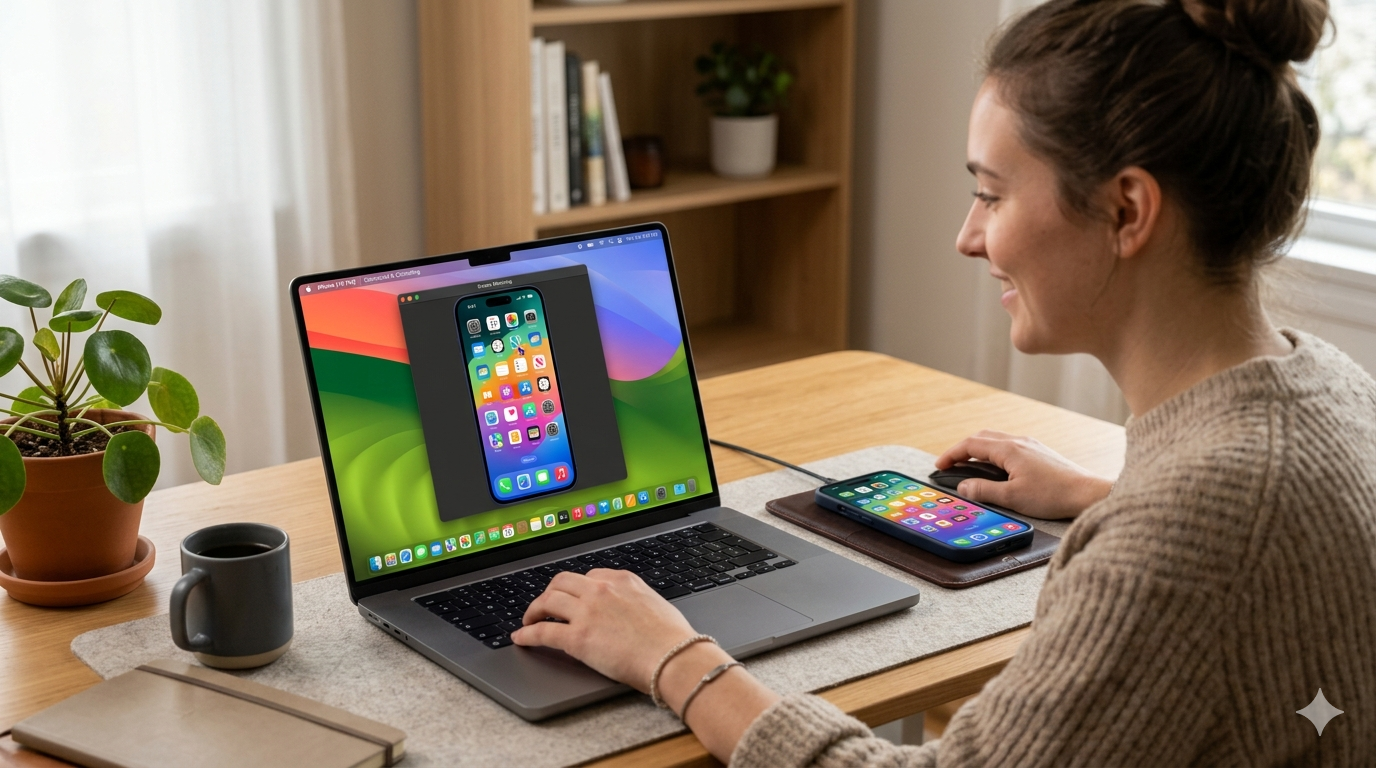
The most complete solution currently available is Apple’s built-in iPhone Mirroring, introduced in newer versions of iOS and macOS.
What makes it different
Unlike older screen-sharing methods, this feature creates a live, interactive version of your iPhone on your Mac. You can open apps, type messages, and navigate using your keyboard and mouse.
What you need
- A Mac running a recent macOS version
- An iPhone updated to iOS 18 or later
- Wi-Fi and Bluetooth enabled on both devices
How to set it up
- Open the iPhone Mirroring app from your Mac’s Dock
- Unlock your iPhone when prompted
- Choose whether to sync notifications
- Sign in with your Mac administrator credentials
- Lock your iPhone to begin the session
Within seconds, your iPhone screen appears on your Mac. From there, you can interact with it as if it were in your hand.
When to use this
This is the best option if you want true control, not just viewing. It’s ideal for productivity, replying to messages, or managing apps without picking up your phone.
How to Mirror Your iPhone Screen (Mac Without Full Control)
If your system doesn’t support the newest features, you still have solid alternatives.
Using QuickTime Player
This built-in Mac app lets you display your iPhone screen using a cable.
Steps in brief:
- Connect your iPhone via USB
- Open QuickTime Player
- Start a new movie recording
- Select your iPhone as the source
You’ll see your iPhone screen instantly. You can also record it.
Limitations
- No remote control
- Requires a cable
Best for
Recording tutorials, watching content, or presentations.
How to Access iPhone Features on Windows
Windows users don’t get full control, but they can still interact with core iPhone functions.
Using Intel Unison
This app bridges your iPhone and Windows PC.
What it can do
- Send and receive text messages
- View notifications
- Make calls
- Transfer files
How it works
After installing the app on both devices, you pair them using a QR code and enable Bluetooth and Wi-Fi.
Limitations
- No full screen control
- Some features depend on hardware compatibility
Best for
Staying connected to your iPhone while working on a PC.
How to Remotely View an iPhone From Anywhere
If you need remote access across locations, screen sharing tools are useful.
Using TeamViewer
This tool allows you to see an iPhone screen from anywhere with internet access.
What it actually does
- Displays the iPhone screen in real time
- Lets you guide another user
What it doesn’t do
- You cannot directly control the iPhone
Best for
Remote support, troubleshooting, or helping someone navigate their device.
How to Wirelessly Mirror Your iPhone to a Mac
Using AirPlay
Apple’s AirPlay feature lets you mirror your iPhone screen without cables.
Setup basics
- Enable AirPlay Receiver on your Mac
- Connect both devices to the same Wi-Fi network
- Select Screen Mirroring from your iPhone
Limitations
- View-only experience
- No direct interaction
Best for
Streaming, presentations, or casual viewing.
How to Continue Tasks Across Devices
Using Handoff
Handoff doesn’t control your iPhone, but it bridges your workflow.
You can start writing an email or editing a document on your iPhone and instantly continue on your Mac.
Best for
Productivity and multitasking rather than control.
What You Can’t Do (Yet)
Even with recent improvements, Apple still restricts full remote control in many scenarios.
- You cannot fully control an iPhone from Windows
- Third-party apps still can’t override Apple’s security for complete access
- Remote control over the internet remains limited to screen sharing
Choosing the Right Method
- Want full control? Use iPhone Mirroring on a Mac
- Just need screen display? Use QuickTime or AirPlay
- Using Windows? Try Intel Unison
- Helping someone remotely? Use TeamViewer
Final Thoughts
The idea of controlling an iPhone from a computer used to be mostly impractical. That’s no longer the case, but the experience still depends heavily on your device ecosystem.
Apple’s native solution is clearly the most capable, while other tools fill in the gaps depending on whether you need visibility, communication, or basic interaction.
If you’re deciding where to start, focus less on “full control” and more on what you actually need to accomplish. In many cases, a simpler method will get the job done just as effectively.