
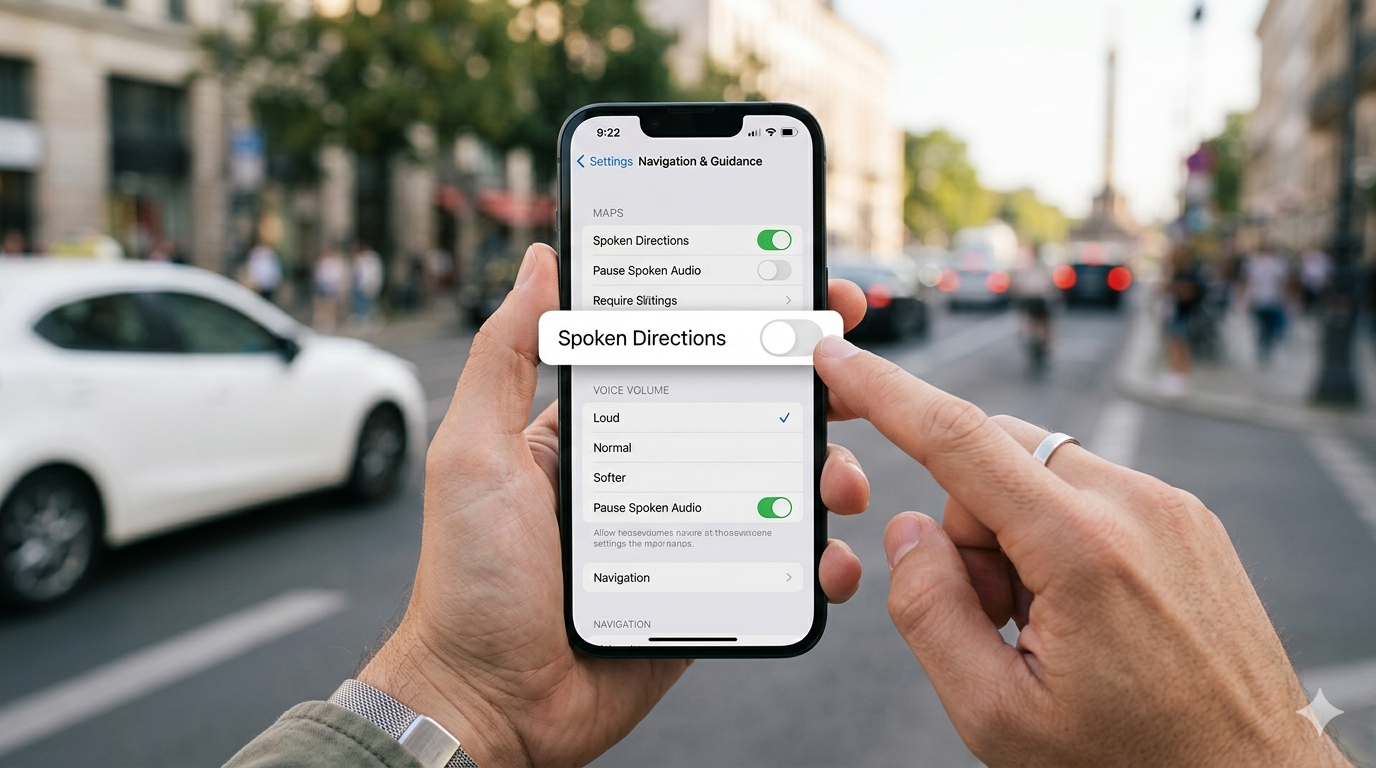
HowToForYou.com – For many iPhone users, navigation is more than just getting from point A to point B—it’s about convenience, clarity, and control. If you’ve ever found turn-by-turn directions too loud, too quiet, or simply unnecessary, learning how to customize spoken directions in Apple Maps can significantly improve your driving or commuting experience.
This guide breaks down everything you need to know, from muting directions entirely to changing the voice and language, along with a few lesser-known settings that can make navigation smoother.
How to Turn Spoken Directions On or Off
Once navigation has started, adjusting audio settings is quick and intuitive.
- Open Apple Maps on your iPhone
- Enter your destination and tap Go
- Tap the audio control icon on the navigation screen
- Choose one of the following options:
- Unmuted: Full spoken directions
- Alerts Only: Only critical updates like traffic or hazards
- Muted: No voice guidance
This flexibility is especially useful in different driving scenarios. For instance, “Alerts Only” works well in familiar areas, while full guidance is better for unfamiliar routes.
How to Adjust Spoken Directions Volume
Not all environments are the same—what works in a quiet car may not work on a noisy highway. Apple Maps provides built-in volume levels you can switch between instantly:
- Louder: Ideal for busy roads or when music is playing
- Normal: Balanced for everyday use
- Softer: Best for quieter settings or late-night drives
You can also set a default volume:
- Open the Settings app
- Scroll to Maps
- Tap Spoken Directions
- Select your preferred Voice Volume
This ensures consistency every time you start navigation.
How to Change the Voice or Language
If you prefer a different accent or language for directions, you’ll need to adjust your Siri settings, since navigation الصوت relies on it.
- Open Settings
- Tap Siri & Search (or Apple Intelligence & Siri)
- Choose:
- Language: Select your preferred language
- Voice: Preview and pick a voice style
Changing this setting not only affects navigation but also other Siri-based interactions, creating a more personalized experience across your device.
How to Customize Advanced Navigation Audio Settings
Beyond basic controls, iPhone offers additional features that many users overlook. These settings can enhance safety and usability:
Pause Audio for Directions
When enabled, your iPhone will automatically pause music, podcasts, or audiobooks when directions are spoken. This ensures you never miss an instruction.
Wake Screen for Directions
Your screen will light up when a direction is announced—helpful when your phone is mounted or the display is off.
Play Directions Over Car Radio
In compatible vehicles, directions can interrupt your radio audio, making them easier to hear without switching inputs.
To access these:
- Open Settings
- Tap Maps
- Select Spoken Directions
- Toggle features on or off based on your preference
Important Requirements to Keep in Mind
For spoken directions to work reliably, your iPhone must meet a few conditions:
- Active internet connection
- Location Services enabled with Precise Location turned on
- Sufficient data access (cellular charges may apply)
Also note that some navigation features may vary depending on your country or region.
Final Thoughts
Knowing how to fine-tune spoken directions on your iPhone can make everyday navigation more efficient and less distracting. Whether you prefer complete silence or detailed voice guidance, Apple Maps offers enough customization to match your habits.
Taking a few minutes to adjust these settings can lead to a noticeably better experience every time you hit the road.