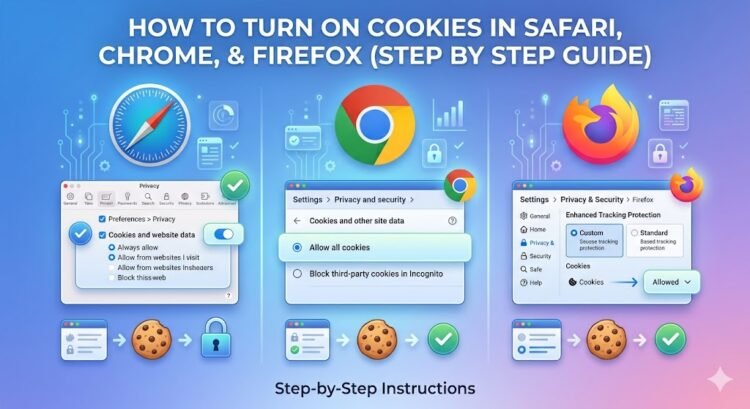

HowToForYou.com – Cookies are a foundational part of how the modern web works. These small data files help websites remember your preferences, keep you signed in, and enable key features like shopping carts and secure logins. When cookies are disabled, even basic actions—like accessing accounts or completing forms—can break.
If you’ve run into error messages or websites that won’t load properly, the fix is often straightforward. Here’s a clear, updated guide on how to enable cookies across major browsers, along with practical troubleshooting steps that go beyond the basics.
Why Cookies Matter More Than You Think
Before diving into settings, it helps to understand what’s at stake. Cookies aren’t just about convenience—they’re essential for:
For You :
- Authentication (keeping you logged in)
- Personalization (saving language or theme preferences)
- Security (detecting suspicious activity)
- E-commerce functionality (shopping carts, checkout)
Blocking cookies entirely can improve privacy, but it often comes at the cost of usability. The key is knowing how to balance both.
How to Enable Cookies in Safari on iPhone and iPad
On mobile devices, cookie settings are tucked inside system preferences rather than the browser itself.
Steps:

- Open the Settings app
- Scroll down and tap Apps (on newer iOS versions)
- Select Safari
- Tap Advanced
- Turn OFF Block All Cookies
If the toggle is already off, cookies are enabled and you don’t need to change anything.
Optional adjustment:
You can also review Prevent Cross-Site Tracking in Safari settings. Turning this off allows third-party cookies, which some websites require to function fully—but it reduces privacy protections.
How to Enable Cookies in Safari on Mac
Desktop users have more granular control over cookie behavior.

Steps:
- Open Safari
- Click Safari in the top menu
- Select Settings
- Go to the Advanced or Privacy tab
- Uncheck Block all cookies
Once unchecked, Safari will accept cookies from websites you visit.
Advanced tip:
If certain websites still don’t work, try unchecking Prevent cross-site tracking. This allows third-party cookies, which some login systems and embedded tools depend on.

How to Enable Cookies in Google Chrome (Mac)
Google Chrome uses a more flexible privacy model, letting you choose how cookies behave.
Steps:
- Open Google Chrome
- Click Chrome in the menu bar
- Select Settings
- Navigate to Privacy and security
- Click Cookies and other site data
- Choose Allow all cookies or Block third-party cookies in Incognito
This setup lets you maintain privacy in private sessions while keeping normal browsing fully functional.

How to Enable Cookies in Mozilla Firefox (Mac)
Firefox offers a privacy-first approach with customizable controls.
Steps:
- Open Mozilla Firefox
- Click Firefox in the menu bar
- Select Settings
- Go to Privacy & Security
- Under Browser Privacy, choose:
- Standard (recommended for most users), or
- Custom → uncheck Cookies to allow all cookies
The “Standard” setting strikes a balance by allowing essential cookies while limiting trackers.

What to Do If Cookies Still Aren’t Working
Enabling cookies doesn’t always solve the issue immediately. Here are a few deeper fixes that can resolve persistent problems:
1. Turn Off Private Browsing Mode
Private or Incognito modes block or limit cookies by design. If you’re using one of these modes, switch back to a regular browsing window.
2. Clear Old Cookies and Cache
Outdated or corrupted cookie data can cause conflicts.

- On Mac: Clear via browser settings under Privacy
- On iPhone/iPad: Go to Settings → Safari → Advanced → Website Data → Remove All Website Data
Be aware this will log you out of most websites.
3. Check Third-Party Cookie Settings
Some services—especially payment systems or embedded tools—require third-party cookies.
- In Safari: Disable Prevent Cross-Site Tracking
- In Chrome: Allow third-party cookies (at least temporarily)
4. Restart Your Browser or Device
It sounds simple, but changes to cookie settings don’t always take effect until you restart the browser—or even the device.

A Smarter Approach to Cookie Settings
Rather than simply turning everything on or off, consider a more balanced setup:
- Enable cookies for everyday browsing
- Block third-party cookies where possible
- Use private browsing for sensitive sessions
This approach keeps websites functional while still protecting your data.
The Bottom Line
Understanding how to enable cookies is less about flipping a switch and more about managing how your browser interacts with websites. Whether you’re using Safari, Chrome, or Firefox, the right configuration can resolve frustrating errors and improve your overall browsing experience.

If you’re still running into issues, it’s often not the cookies themselves—but how they interact with privacy settings, outdated data, or browsing modes. Adjust those, and most problems disappear quickly.