
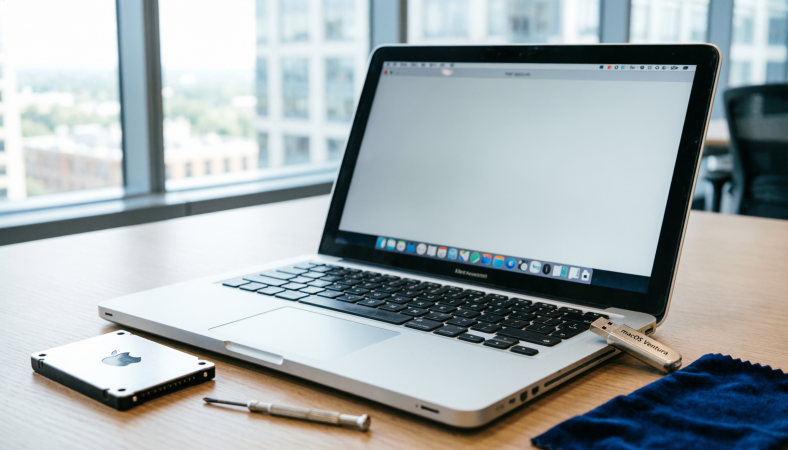
HowToForYou.com – If your Mac feels noticeably slower than it did a few years ago, you are not alone. Aging hardware, crowded storage, and background processes can quietly chip away at performance. The good news: you do not necessarily need to invest in a new device to restore speed. With the right adjustments, many iMac and MacBook models can regain responsiveness and efficiency.
Below is a practical guide on how to improve Mac performance using built-in tools and smart system management. These steps focus on optimization rather than costly upgrades.
How to Identify What’s Slowing Down Your Mac
Before deleting files or changing settings, it is important to understand what is actually consuming your system’s resources.
Use Activity Monitor for a Clear Diagnosis
macOS includes a built-in utility called Activity Monitor that provides a real-time snapshot of system activity. You can find it through Finder under Applications > Utilities or open Spotlight search using Command + Space.
Inside Activity Monitor, review:
-
CPU usage to identify processor-heavy apps
-
Memory consumption to see which programs are draining RAM
-
Energy impact to check battery strain
-
Disk and Network activity for background data transfers
Instead of simply closing random apps, focus on those consistently using a high percentage of CPU or memory even when idle. Quitting these programs can immediately reduce system strain.
How to Prevent Startup Apps From Slowing Boot Time
Many Macs feel slow not because of daily usage, but because too many applications launch automatically at startup.
Manage Login Items
Open System Settings (or System Preferences on older macOS versions), then navigate to Users & Groups and review Login Items.
Remove unnecessary apps from this list. Applications such as messaging tools, cloud sync clients, or creative software do not always need to launch the moment your Mac turns on. Fewer startup programs mean faster boot times and less background load.
How to Manage Cloud Syncing Without Sacrificing Performance
Cloud syncing can quietly affect system performance, particularly if large files are constantly uploading and downloading in the background.
Rethink iCloud Desktop and Photo Sync
Apple’s iCloud integration is convenient, but syncing large photo libraries or desktop folders across multiple devices can slow down your Mac.
If you store high-resolution images or large project files, consider:
-
Disabling iCloud Photos on your Mac if not essential
-
Moving large media files to an external drive
-
Using selective sync settings
For users seeking alternative storage workflows, services such as Dropbox or Google Drive allow cloud backups without automatically mirroring every file locally.
Music libraries can also take up significant space. Instead of storing downloaded tracks, streaming platforms like Apple Music provide cloud-based access without consuming internal storage.
How to Free Up Storage Space the Right Way
Running low on storage can significantly slow macOS performance. When your startup disk approaches full capacity, your system has less room for temporary files and virtual memory.
Audit Large Files and Hidden Storage Hogs
Click the Apple menu, select “About This Mac,” then review the Storage tab. Look beyond obvious folders like Photos and Videos.
Check:
-
Downloads folder (often overlooked)
-
Old installers and disk images
-
Duplicate files
-
Unused applications
Delete what you no longer need, then empty the Trash. Remember: files remain on your drive until the Trash is cleared.
macOS also allows automatic Trash removal after 30 days. Enabling this feature keeps storage from quietly filling back up.
How to Adjust Visual Effects for Better Performance
While macOS is designed to run smoothly, visual effects can consume system resources, especially on older hardware.
You can reduce graphics strain by:
-
Disabling Dock magnification
-
Turning off application open animations
-
Switching window minimize effects to “Scale” instead of “Genie”
-
Reducing transparency in Accessibility settings
These changes will not dramatically alter your experience, but they can reduce GPU load and improve responsiveness on aging systems.
How to Know When a Clean macOS Installation Is Necessary
If your Mac continues to lag despite optimization, a clean operating system reinstall may be the most effective solution.
Over time, system files, background services, and unused libraries accumulate. Reinstalling macOS removes hidden clutter and restores factory-level efficiency.
Before proceeding:
-
Back up essential files using Time Machine or an external drive
-
Sign out of major accounts
-
Ensure you have access to necessary login credentials
A clean installation should be considered a final step, not the first.
When It’s Time to Upgrade Instead
Even after careful optimization, hardware limitations eventually become unavoidable. Older Macs with limited RAM or aging storage drives may struggle with modern applications and system updates.
If performance issues persist after maintenance, upgrading RAM (if supported), switching to an SSD, or replacing the device may be worth considering.
The Bottom Line
Learning how to speed up a slow Mac is less about one dramatic fix and more about consistent system management. Closing resource-heavy apps, managing startup programs, controlling cloud sync, and freeing storage can collectively restore noticeable performance gains.
Before assuming your Mac has reached the end of its lifespan, try these steps. In many cases, a well-maintained system can continue running efficiently for years beyond expectations.