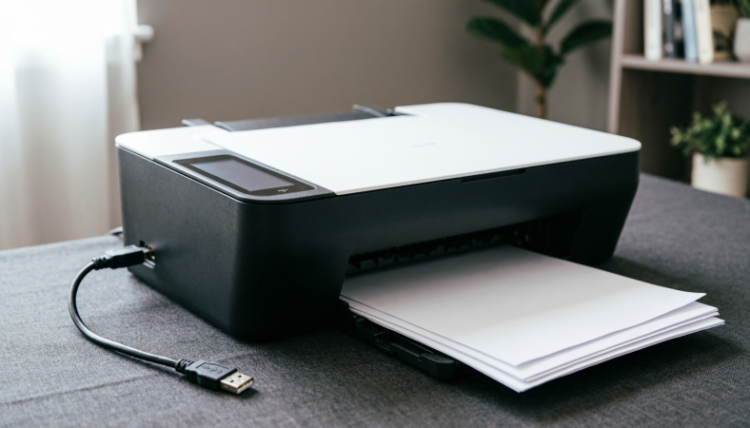

HowToForYou.com – When a printer refuses to cooperate, the issue is often not the hardware but the software behind it. Printer drivers serve as the communication bridge between your computer and the device. If that bridge breaks, printing stops.
For many users, operating systems such as Windows and macOS handle driver installation automatically. But automatic updates do not always work as expected. In those cases, knowing how to install printer drivers manually can save time, prevent unnecessary service calls, and restore functionality quickly.
Below is a practical guide that goes beyond basic steps and explains not only how to install drivers, but also why each method works.
For You :
Why Printer Drivers Sometimes Fail
Before diving into installation methods, it helps to understand the common causes of driver issues:
-
Operating system updates that override or disable older drivers
-
Corrupted installation files
For You :
-
Incompatible driver versions
-
Network configuration changes
-
Outdated firmware on the printer
For You :

When these issues appear, the system may not recognize the printer, or it may display persistent “driver unavailable” messages.
How to Install Printer Drivers Using Windows Update
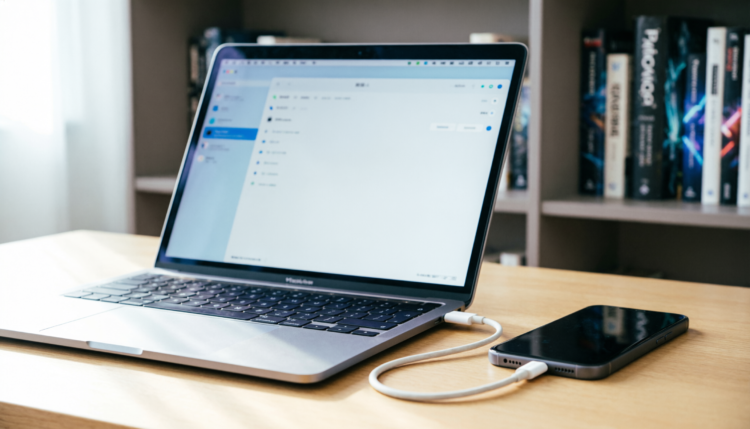
For Windows users, the first solution should always be checking for system updates. Microsoft distributes many printer drivers directly through its update service.
Step-by-Step Guide
-
Open the Start menu.
For You :
-
Go to Settings.
-
Select Update & Security.
-
Click Check for Updates.
For You :

If Windows detects a compatible printer driver, it will download and install it automatically.
Advanced Tip
Under optional updates, Windows may list driver updates that are not installed by default. Reviewing this section can reveal updated printer drivers that are not automatically deployed.
This method works best when:
For You :

-
The printer model is widely supported
-
The device is connected and powered on
-
You are running a supported version of Windows
For You :
If the printer still does not appear, a manual download may be necessary.
How to Reinstall Printer Software on macOS
On Apple devices, printer drivers are often referred to as “printer software.” Unlike Windows, macOS sometimes requires removing and re-adding a printer to refresh its configuration.
Step-by-Step Guide
-
Open System Settings (or System Preferences in older versions).
For You :

-
Navigate to Printers & Scanners.
-
Select the printer from the list.
-
Click the minus (–) button to remove it.
For You :

-
Click the plus (+) button to add a new printer.
-
Choose your printer from the available list.
If prompted, select:
For You :
-
AirPrint (if supported)
-
Automatically download recommended software
-
Install from a local file if you already have the driver package
For You :
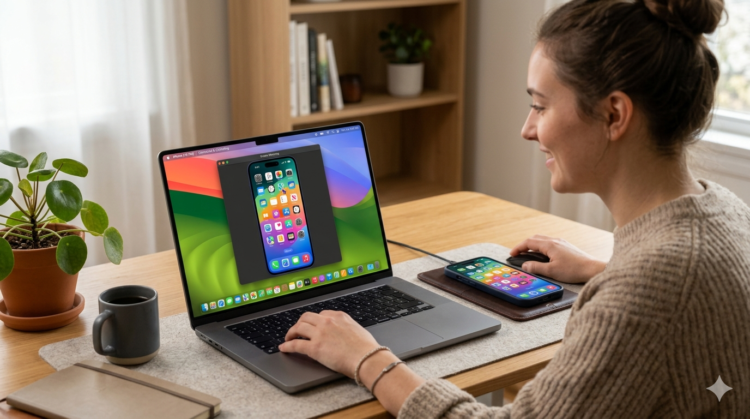
macOS may take a few minutes to detect network printers. Ensure the printer is powered on and connected to the same Wi-Fi network.
How to Download Printer Drivers from the Manufacturer’s Website
If automatic updates fail, the most reliable solution is installing drivers directly from the manufacturer.
Step 1: Locate the Official Support Page
Search for your printer model followed by the word “support.” Be careful to choose the official website to avoid malicious downloads.
For You :

Major manufacturers include:
-
HP
-
Canon
For You :

-
Epson
-
Brother Industries
Step 2: Enter Your Printer Model
Search using the exact model number printed on the device. Even small differences in model variants can require different drivers.
For You :
Step 3: Select the Correct Operating System
Manufacturers usually list drivers by OS version. Double-check your system version before downloading.
Step 4: Download and Run the Installer
Most printer drivers are self-installing. After downloading:
-
Double-click the file
For You :
-
Follow the on-screen instructions
-
Restart your computer if prompted
This method ensures you receive the most up-to-date and fully compatible driver.
For You :
Additional Troubleshooting Tips
If installation still fails:
-
Disconnect USB cables before reinstalling, then reconnect when prompted
-
Temporarily disable antivirus software during installation
For You :
-
Check your printer firmware for updates
-
Restart your router if installing over Wi-Fi
-
Remove old driver files before reinstalling
For You :
In business environments, administrators may need to manually assign drivers via Device Manager (Windows) or CUPS configuration (macOS).
How to Prevent Future Driver Problems
Prevention is easier than repair. Consider these practices:
-
Enable automatic updates
For You :
-
Keep printer firmware current
-
Avoid installing drivers from unofficial sources
-
Use wired connections during initial setup when possible
For You :
-
Document your printer’s exact model number
Regular maintenance reduces the chance of compatibility issues after major operating system upgrades.
Final Thoughts
Knowing how to install printer drivers manually gives you control when automatic systems fall short. Whether you are using Windows or macOS, the key is identifying the correct driver source and ensuring compatibility with your operating system version.
For You :

While automatic updates handle most cases today, manual installation remains an essential skill, especially when dealing with older printers or network configurations.
If your printer is still unresponsive after these steps, the issue may extend beyond drivers and involve hardware components or deeper system conflicts. At that point, contacting manufacturer support may be the most efficient next step.
For You :