
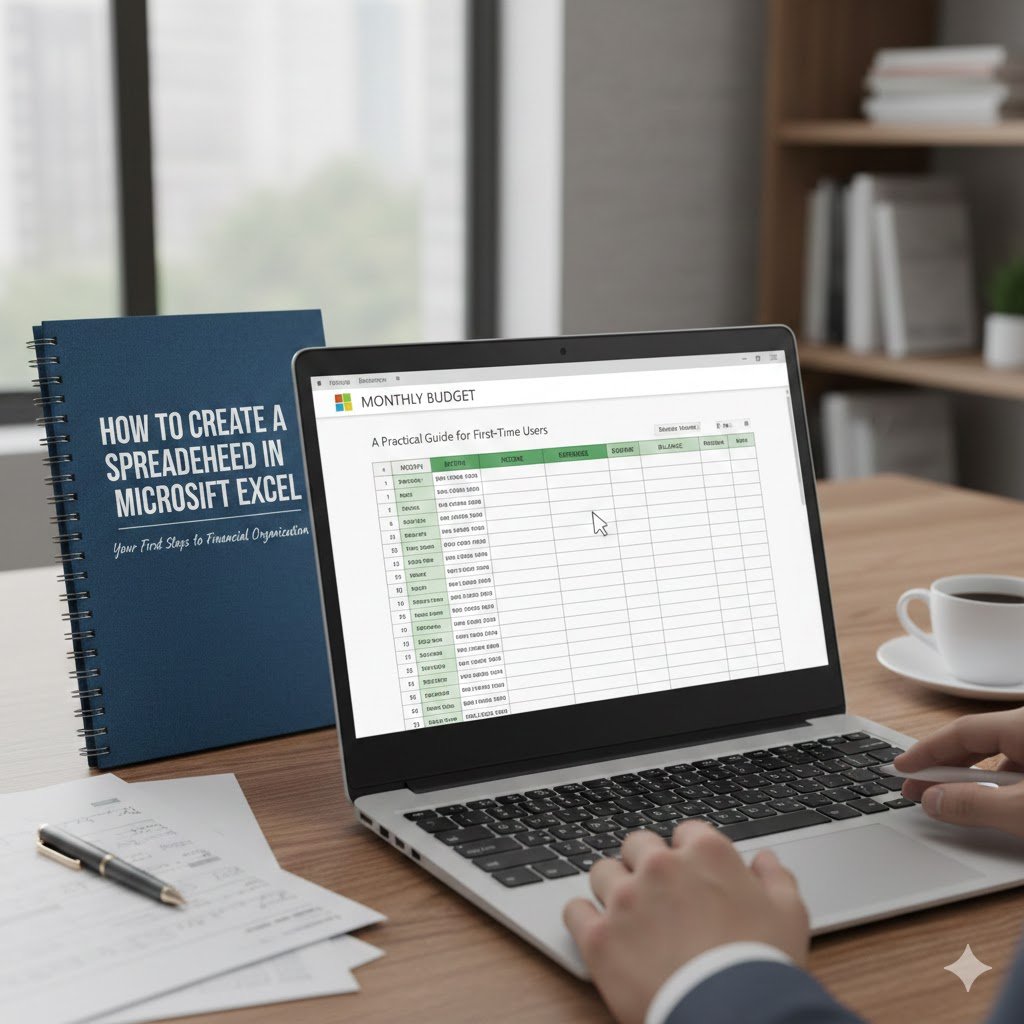
Digimagaz.com – For many beginners, opening Microsoft Excel for the first time can feel overwhelming. Rows, columns, toolbars, and formulas appear all at once. Yet at its core, Excel is built on a simple concept: organizing information into a grid and using that structure to calculate, compare, and analyze data.
If you are wondering how to create a spreadsheet in Excel without prior experience, this guide breaks the process into clear, manageable steps while also explaining why each feature matters. By the end, you will not only know how to build a spreadsheet, but how to make it work for real-world tasks such as budgeting and home inventory tracking.
How to Start a New Spreadsheet in Excel
The first step is launching Excel on your device. Once opened, you will typically see the option to create a new document.
-
Select Blank Workbook.
-
A new file will open with a default sheet, usually labeled Sheet1.
In Excel terminology, the entire file is called a workbook, while each tab at the bottom represents a worksheet. You can add more worksheets by clicking the plus symbol next to the existing tab.
This structure allows you to separate data logically. For example, one sheet could track income while another tracks expenses.
How to Understand Excel’s Layout
Before entering data, it helps to understand how Excel organizes information.
-
Columns run vertically and are labeled with letters (A, B, C, and so on).
-
Rows run horizontally and are labeled with numbers (1, 2, 3, etc.).
-
Cells are the boxes where rows and columns intersect.
Each cell has a unique address. For instance:
-
A1 refers to column A, row 1.
-
B3 refers to column B, row 3.
This addressing system becomes important when you start using formulas.
How to Enter and Edit Data
Entering information into Excel is straightforward:
-
Click any cell.
-
Begin typing.
-
Press Enter to move down a row or Tab to move across a column.
If you need to revise data:
-
Double-click the cell to edit directly.
-
Or select the cell and modify the content in the Formula Bar at the top.
To delete data, select the cell and press the Delete key. Excel will clear that cell without affecting surrounding information.
If text spills into adjacent columns, resize the column by dragging the border between column letters at the top.
How to Add Rows and Columns
Spreadsheets evolve as your data grows. Excel allows you to expand easily:
-
To insert a row: right-click a row number and select Insert.
-
To insert a column: right-click a column letter and select Insert.
-
To delete a row or column: right-click and choose Delete.
This flexibility makes Excel useful for projects that change over time.
How to Use Basic Formulas in Excel
One of the most powerful aspects of Excel is its ability to calculate automatically.
Every formula begins with an equal sign (=). For example:
-
=SUM(A1:A5)adds values from cells A1 through A5. -
=AVERAGE(B1:B10)calculates the average of selected cells.
To explore available functions:
-
Click the Formulas tab.
-
Select Insert Function (fx).
-
Browse categories such as Financial, Logical, or Math & Trig.
Even beginners can start with simple calculations like totals and gradually move toward more advanced functions such as conditional formulas.
How to Create a Home Inventory Spreadsheet
To apply these basics, consider building a simple home inventory.
Step 1: Create Column Headers
In Row 1, label your columns:
-
A1: Item
-
B1: Location
-
C1: Make/Model
Clear headers make data easier to understand and sort later.
Step 2: Enter Each Item on a New Row
Each row should represent one item. For example:
| Item | Location | Make/Model |
|---|---|---|
| HD Monitor | Office | Apple Cinema 30 |
This structured approach ensures your spreadsheet remains organized as it grows.
Step 3: Filter Data for Quick Insights
Excel’s Filter feature allows you to display only specific entries.
-
Select your header row.
-
Click the Data tab.
-
Choose Filter.
You can now filter by location, item type, or any other category.
This feature is especially helpful when managing dozens or hundreds of records.
How to Create a Monthly Budget Using a Template
If building from scratch feels intimidating, Excel offers ready-made templates.
Search for a “Simple Monthly Budget” template within Excel’s template gallery. Once opened, you can customize income and expense categories to match your situation.
Typically, these templates include:
-
A Monthly Income sheet
-
A Monthly Expenses sheet
-
A Summary sheet with automatic calculations
When you update income or expenses, the summary adjusts instantly. This demonstrates how Excel’s formulas work behind the scenes to keep financial data accurate.
How to Format and Customize Your Spreadsheet
Presentation matters, especially in professional settings.
Under the Page Layout tab, you can:
-
Change fonts
-
Apply color themes
-
Adjust spacing
-
Highlight headers
Formatting improves readability and makes your spreadsheet easier to share with colleagues or instructors.
How to Save and Store Your Spreadsheet
To protect your work:
-
Click File.
-
Select Save As.
-
Choose your storage location.
You can save locally or to cloud services such as Microsoft OneDrive, which allows access across devices.
Regular saving prevents data loss and ensures version control.
Why Learning How to Use Excel Still Matters
Despite the growth of newer productivity apps, Excel remains one of the most widely used data tools in business, education, and personal finance. Understanding how to create a spreadsheet in Microsoft Excel provides a foundation for skills such as data analysis, budgeting, reporting, and forecasting.
What begins as entering numbers into rows and columns can evolve into building dashboards, tracking investments, or analyzing business performance.
If you focus on mastering the basics first, Excel becomes far less intimidating and far more powerful than it initially appears.