HowToForYou.com – Taking screenshots has become a basic digital skill, but on a Chromebook the process works a little differently than on Windows or macOS. For users new to ChromeOS, that difference can be confusing at first. The good news is that Google has built screenshot tools directly into the operating system, making screen captures quick, flexible, and surprisingly powerful once you know where to look.
Unlike traditional laptops, Chromebooks rely on a mix of keyboard shortcuts and on-screen controls rather than dedicated “Print Screen” keys. This design reflects ChromeOS’s emphasis on simplicity and speed, especially for students, remote workers, and everyday users who need to capture information without installing extra software.
Below is a clear look at how screenshots work on a Chromebook, what options are available, and how to manage your captures efficiently.
Using keyboard shortcuts to capture the screen
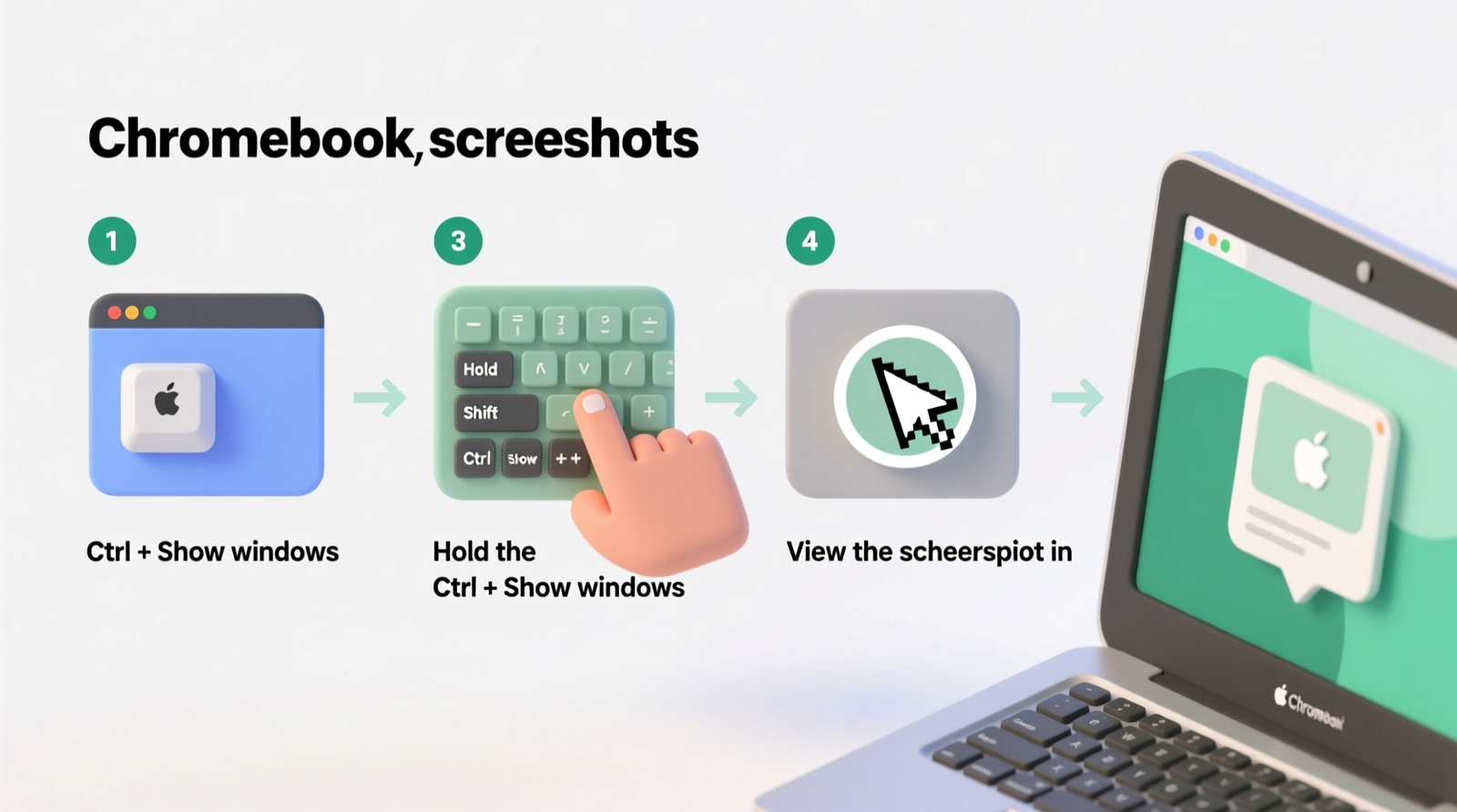
The fastest way to take a screenshot on a Chromebook is through a built-in keyboard shortcut. Pressing Ctrl + Shift + Show Windows opens the Screen Capture toolbar. The Show Windows key sits on the top row of the keyboard and is marked with an icon resembling overlapping rectangles.
Once the toolbar appears, users can choose between capturing the entire screen, selecting a specific window, or dragging to capture a custom area. This approach gives more control than a single “full screen only” shortcut and helps avoid unnecessary cropping later.
For those who only need a quick image of everything on the display, there is an even faster option. Pressing Ctrl + Show Windows instantly captures the full screen without opening the toolbar.
Some newer Chromebook models simplify this further by including a dedicated Screen Capture key. Identified by a small camera icon, this key launches the capture tool with a single press. While not available on every device, it reflects Google’s push to make screenshots a core feature rather than an afterthought.
Accessing screenshots through Quick Settings
Keyboard shortcuts are efficient, but they are not everyone’s preference. Recognizing this, Google added screenshot access to the Quick Settings panel.
To open it, click on the clock in the bottom-right corner of the screen. This reveals system controls for Wi-Fi, sound, and notifications. Among these options is a Screen Capture button. Selecting it launches the same toolbar used by keyboard shortcuts, allowing users to take screenshots or record the screen without memorizing key combinations.
This option is especially helpful on touchscreen Chromebooks, where tapping icons feels more natural than using keys.
Understanding the Screen Capture toolbar
The Screen Capture toolbar is the control center for all screenshot and screen recording actions on ChromeOS. On the left side, users can switch between still screenshots and video recordings. This dual functionality eliminates the need for separate apps when creating tutorials, demonstrations, or walkthroughs.
To the right of the toggle are three capture modes: full screen, partial screen, and window-specific capture. Each mode works for both images and video, offering flexibility depending on the task.
A small settings icon on the toolbar opens additional controls. One notable option is microphone access during screen recordings. When enabled, it allows narration to be recorded along with on-screen activity, which is useful for presentations or instructional content.
Where Chromebook screenshots are stored
After taking a screenshot, ChromeOS makes it immediately accessible. The most recent captures appear in a temporary holding area called Tote, located on the Shelf at the bottom of the screen. Tote is designed for quick access and supports pinning files so important images remain easy to find.
In addition to Tote, screenshots are copied to the Clipboard. ChromeOS keeps the last five items stored there, including images and text. Pressing Search + V opens the Clipboard manager, letting users paste or review recent captures without opening the Files app.
All screenshots are also saved permanently in the Downloads folder unless the default location has been changed. From there, they can be renamed, moved to Google Drive, or shared like any other file.
Why ChromeOS screenshots stand out
What sets Chromebook screenshots apart is how tightly they are integrated into the operating system. There is no need for third-party tools, and features like the Clipboard history and Tote reduce friction when multitasking.
For students, screenshots can capture assignments or instructions instantly. For professionals, they support fast collaboration and visual explanations. For families, they make it easier to guide less tech-savvy users through unfamiliar screens.
As ChromeOS continues to evolve, Google’s approach to screenshots reflects a broader goal: reducing complexity while expanding capability. Once users understand the available tools, taking and managing screenshots on a Chromebook becomes not just easy, but efficient.