HowToForYou.com – A blinking or unstable laptop display can derail a work session in seconds. Whether you are editing documents, joining virtual meetings, or streaming video, screen flickering is more than an inconvenience. It can signal deeper software conflicts or early hardware failure.
If you are wondering how to stop a laptop screen from flickering, the solution depends on identifying the root cause. In many cases, the fix is straightforward and does not require professional repair. Below is a comprehensive, updated guide that walks through both common and less obvious solutions.
Why Laptop Screens Flicker in the First Place
Screen flickering usually falls into one of three categories: software conflicts, driver issues, or hardware problems. Understanding which category your issue belongs to will save time and prevent unnecessary repairs.
For You :
1. Software Conflicts
Some third-party applications interact poorly with your system’s display settings. This is especially common with graphics-heavy programs, screen recording tools, and certain antivirus platforms.
How to check:
-
Press Ctrl + Shift + Esc to open Task Manager.
For You :
-
If Task Manager appears stable while everything else flickers, a background application may be responsible.
This method helps narrow the issue down to software rather than hardware.
2. Outdated or Corrupted Graphics Drivers
Display drivers act as translators between your operating system and graphics hardware. When they are outdated or damaged, flickering often follows.
For You :
This issue frequently appears after major updates to Microsoft Windows, particularly Windows 10 and 11 feature upgrades.
3. Incorrect Refresh Rate Settings
If your screen refresh rate is set too low or mismatched with an external monitor, flickering can occur. High-resolution monitors are especially sensitive to improper refresh settings.
4. Loose Internal Display Cable
If flickering worsens when you move the screen back and forth, the issue may involve the internal display ribbon cable. This typically requires technical servicing.
For You :
5. Failing Graphics Hardware
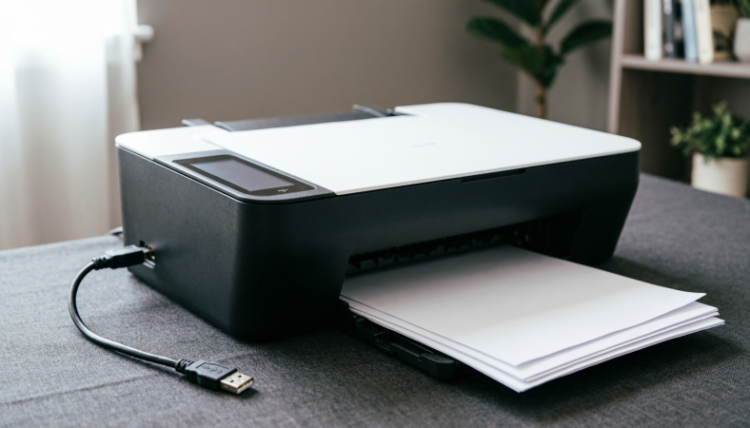
In more serious cases, the GPU itself may be failing. Warning signs include screen distortion, color lines, and system crashes alongside flickering.
How to Stop a Laptop Screen From Flickering
Below are practical, step-by-step solutions arranged from simplest to more advanced.
1. Update or Reinstall Display Drivers
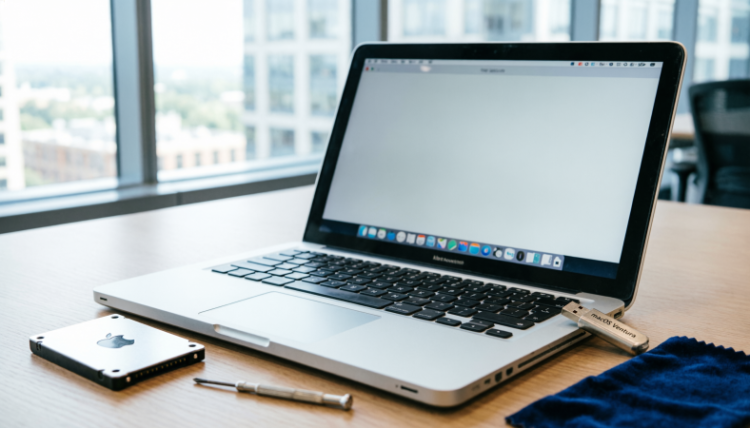
Driver updates resolve a significant percentage of flickering complaints.
For You :
Steps:
-
Boot into Safe Mode.
-
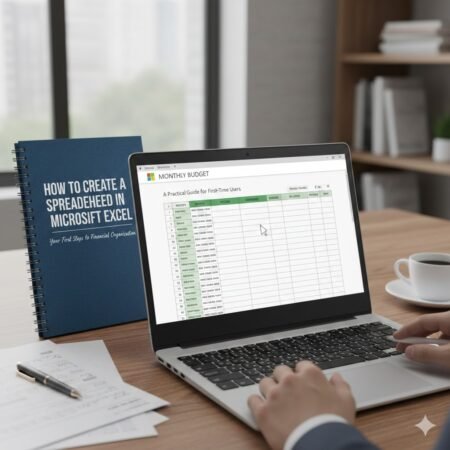
Open Device Manager.
For You :
-
Expand “Display adapters.”
-
Right-click your graphics device and select “Uninstall.”
-
Restart your computer.
For You :
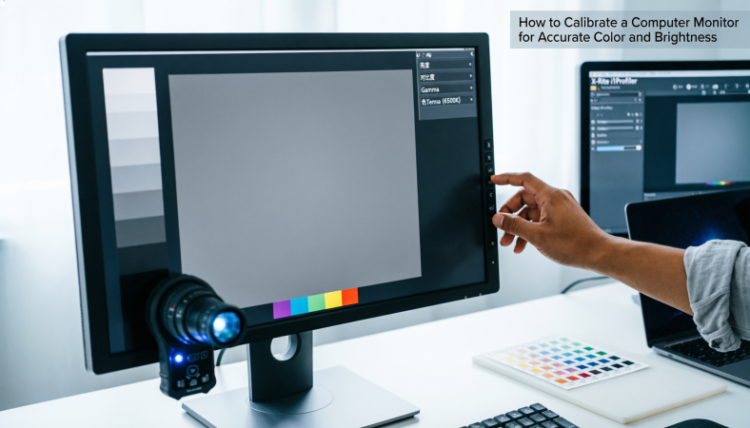
Windows will attempt to reinstall the correct driver automatically. You can also download the latest driver directly from your laptop manufacturer’s website for better reliability.
2. Install Pending System Updates
Operating system patches often include graphics stability improvements.
-
Go to Settings
For You :
-
Select Windows Update
-
Click Check for updates
-
Install all available updates
For You :

Skipping cumulative updates can leave display-related bugs unresolved.
3. Adjust the Refresh Rate
To correct refresh rate settings:
-
Right-click the desktop.
For You :

-
Choose Display Settings.
-
Click Advanced display settings.
-
Select a higher refresh rate if available (such as 60Hz or above).
For You :
If you use an external monitor, ensure both devices are configured correctly to avoid signal mismatch.
4. Perform a Clean Boot
A clean boot helps identify hidden software conflicts.
How to do it:
For You :
-
Press Windows + R, type
msconfig, and press Enter. -
Under the Services tab, check “Hide all Microsoft services.”
-
Select Disable all.
For You :

-
Open Task Manager and disable startup programs.
-
Restart your laptop.
If flickering stops, re-enable services gradually to isolate the problematic application.
For You :
5. Disable Desktop Window Manager (Advanced Users)
In rare cases, display composition services contribute to instability. Temporarily disabling certain background display services can help determine if this is the issue. If you are not comfortable modifying system services, skip this step.
6. Run the Built-In Troubleshooter
Windows includes automated diagnostics:
-
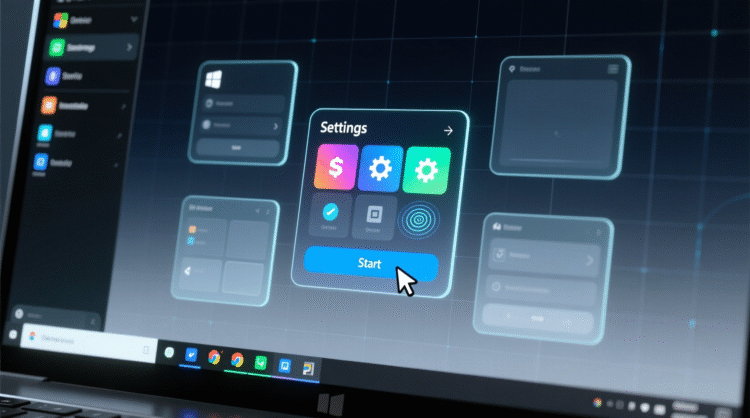
Go to Settings > System > Troubleshoot
For You :
-
Select Other troubleshooters
-
Run the display-related tool
While not perfect, it can detect configuration errors quickly.
For You :
7. Inspect for Physical Damage
If none of the above solutions work and flickering increases when adjusting the screen angle, hardware repair may be necessary. Cracked panels, weakened hinges, or cable wear typically require professional servicing.
When to Seek Professional Repair
If you notice:
-
Persistent flickering after driver updates
For You :

-
Screen discoloration or horizontal lines
-
Random shutdowns during graphics tasks
The issue may involve the GPU or display panel. At that stage, diagnostics from a certified technician are recommended.
For You :
How to Prevent Screen Flickering in the Future
Prevention reduces the likelihood of repeat problems.
-
Keep drivers updated regularly
-
Avoid forcing the screen open beyond its hinge limit
For You :
-
Use a surge protector to stabilize power input
-
Install system updates promptly
-
Avoid extreme heat exposure
For You :

Many flickering issues stem from neglected software maintenance rather than hardware failure.
Final Thoughts
Learning how to stop a laptop screen from flickering starts with identifying whether the cause is software or hardware. In most situations, updating drivers, adjusting refresh rates, or isolating conflicting applications resolves the issue without expensive repairs.
Taking a systematic approach not only restores screen stability but also extends your device’s lifespan. With regular maintenance and timely updates, you can keep your display clear, steady, and reliable for years to come.
For You :