Table of contents:
- Start With Compatibility, Not Cables
- Why Cable Quality Is Not Optional
- Wired Connections Remain the Performance Benchmark
- Display Modes That Actually Make Sense
- Wireless Connections: Convenience Over Precision
- Do Not Ignore Audio Settings
- Gaming Requires a Different Mindset
- Fixing Common Issues Without the Guesswork
- A Smarter Way to Think About Laptop Projection
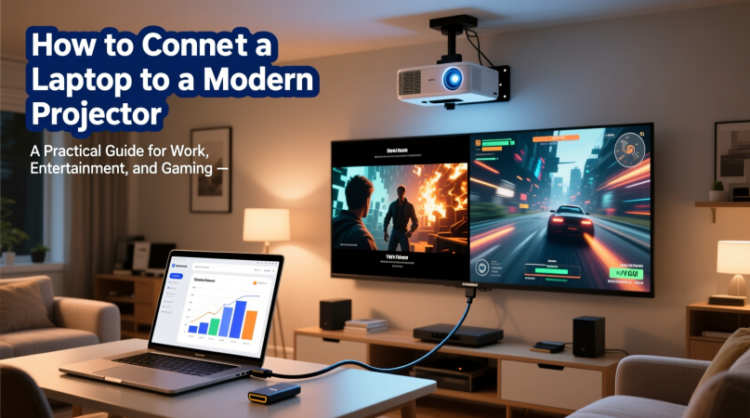
HowToForYou.com – Projectors are no longer limited to conference rooms or classrooms. Today’s models are designed for home theaters, competitive gaming, and hybrid workspaces, making laptop connectivity an essential skill for both professionals and everyday users.
While the process is easier than it once was, choosing the right connection method can significantly affect picture quality, sound performance, and responsiveness. The best setup depends on how you plan to use the projector. A boardroom presentation, a 4K movie night, and a gaming session all place different demands on your hardware.
This guide breaks down the smartest ways to connect a laptop to a modern projector, explains why certain methods work better in specific scenarios, and highlights common mistakes that often lead to poor performance.
For You :
Start With Compatibility, Not Cables
Before focusing on adapters or connection methods, it is worth confirming what your devices actually support. Many connection problems stem from mismatched ports rather than faulty equipment.
Laptop Video Outputs to Know
Most current laptops rely on two primary standards:
- HDMI, which remains the most widely supported video output across consumer electronics.
- USB-C, a compact port that can carry video signals when it supports DisplayPort Alt Mode or Thunderbolt.
Older laptops may still include VGA or full-size DisplayPort, but these are increasingly rare and often require adapters when paired with newer projectors.
For You :
Projector Inputs Matter Just as Much
Nearly all modern projectors use HDMI as their primary input. Higher-end models often include multiple HDMI ports, sometimes with enhanced features such as eARC for advanced audio passthrough. A smaller number now include USB-C inputs capable of handling video and power simultaneously.
Understanding these inputs upfront helps you avoid unnecessary adapters and ensures you are not limiting image quality.
Why Cable Quality Is Not Optional
Using the correct cable is not a minor detail, especially with high-resolution content. A basic HDMI cable may work for a presentation, but it can struggle with 4K video, high refresh rates, or HDR content.
For You :
For modern setups, especially those involving 4K projectors, certified high-speed or ultra high-speed HDMI cables are essential. Poor cables can introduce flickering, signal dropouts, or subtle image degradation that is often mistaken for projector defects.
Wired Connections Remain the Performance Benchmark
Despite advances in wireless technology, a direct wired connection still delivers the most reliable results.
HDMI: The Most Consistent Option
Connecting a laptop to a projector via HDMI remains the simplest and most dependable method.
For You :
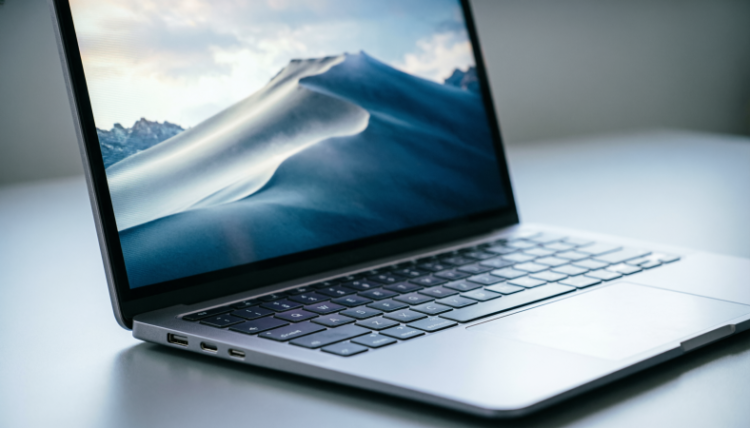
Once both devices are powered on, connecting the cable and selecting the correct input on the projector is usually enough. The laptop will automatically detect the display, allowing you to mirror, extend, or exclusively use the projector through system display settings.
For high-end laser projectors capable of wide color gamuts and true 4K resolution, a proper HDMI connection ensures you are seeing the image as intended.
USB-C: Clean and Convenient, When Supported
If both your laptop and projector support video over USB-C, a single cable can replace multiple connections. This is especially useful for minimalist setups or portable presentations.
For You :
When the projector lacks USB-C video input, a USB-C to HDMI adapter becomes necessary. In this case, adapter quality matters just as much as the cable itself.
Display Modes That Actually Make Sense
Once connected, selecting the right display mode can improve both workflow and viewing comfort.
- Mirror mode works best for presentations and meetings.
- Extended display is ideal for multitasking, allowing notes or controls to remain on the laptop while content appears on the projector.
- Projector-only mode reduces distractions and is often preferred for movies and gaming.
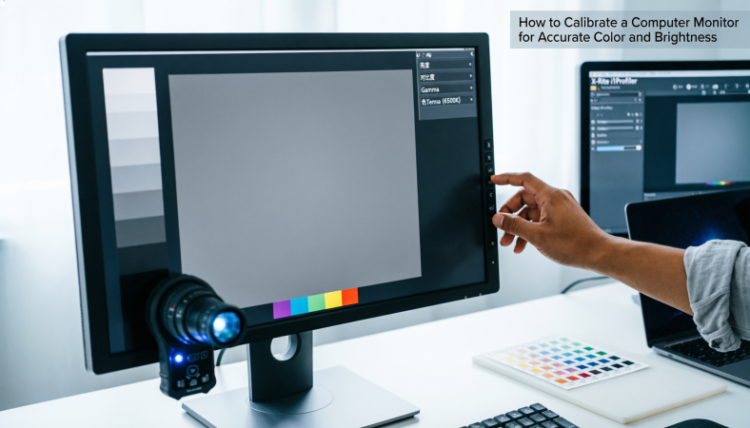
These options are easily accessed on both Windows and macOS through built-in display settings.
For You :
Wireless Connections: Convenience Over Precision
Wireless projection appeals to users who want a clean setup without visible cables. While it can work well, it is not universally reliable.
Streaming Devices Offer the Best Wireless Experience
Dedicated streaming devices such as Chromecast, Apple TV, or Fire TV sticks provide the most stable wireless solution. Once connected to the projector, they allow laptops to cast content using built-in operating system features.
Many modern entertainment-focused projectors are designed with this use case in mind and include streaming devices or dedicated ports to support them.
For You :
Built-In Screen Mirroring Has Limits
Technologies like Miracast and AirPlay can mirror a laptop screen without extra hardware, but performance depends heavily on network quality. Lag, resolution drops, and occasional disconnections are common, especially in crowded Wi-Fi environments.
Do Not Ignore Audio Settings
A frequent oversight is assuming audio will automatically follow video. In reality, laptops often default to their internal speakers even after a successful projection.
Switching the audio output manually ensures sound is routed to the projector or connected sound system. This is particularly important when using HDMI eARC, which allows advanced audio formats to pass through to external receivers or soundbars for a more cinematic experience.
For You :
Gaming Requires a Different Mindset
Projector gaming is increasingly popular, but it demands careful setup.
Wireless connections introduce delay that can make fast-paced games frustrating or unplayable. A wired HDMI connection is essential to keep input lag low.
Many projectors include dedicated game modes that disable unnecessary processing. Some high-performance models offer ultra-low latency modes designed specifically for competitive play, making them suitable for consoles and gaming laptops alike.
For You :
Fixing Common Issues Without the Guesswork
When a connection fails, the cause is often simple:
- A blank screen usually means the wrong input is selected.
- Oversized or blurry images typically result from mismatched resolution settings.
- Audio delays are most common with wireless setups or incompatible processing modes.
Addressing these basics first saves time and avoids unnecessary troubleshooting.
A Smarter Way to Think About Laptop Projection
Connecting a laptop to a projector is no longer a technical challenge, but making the right choices still matters. Wired connections remain the gold standard for image quality and responsiveness, while wireless solutions prioritize convenience and flexibility.
For You :
By understanding your equipment, matching the connection method to your use case, and avoiding common pitfalls, you can turn any projector setup into a reliable extension of your laptop, whether for professional presentations or immersive home entertainment.