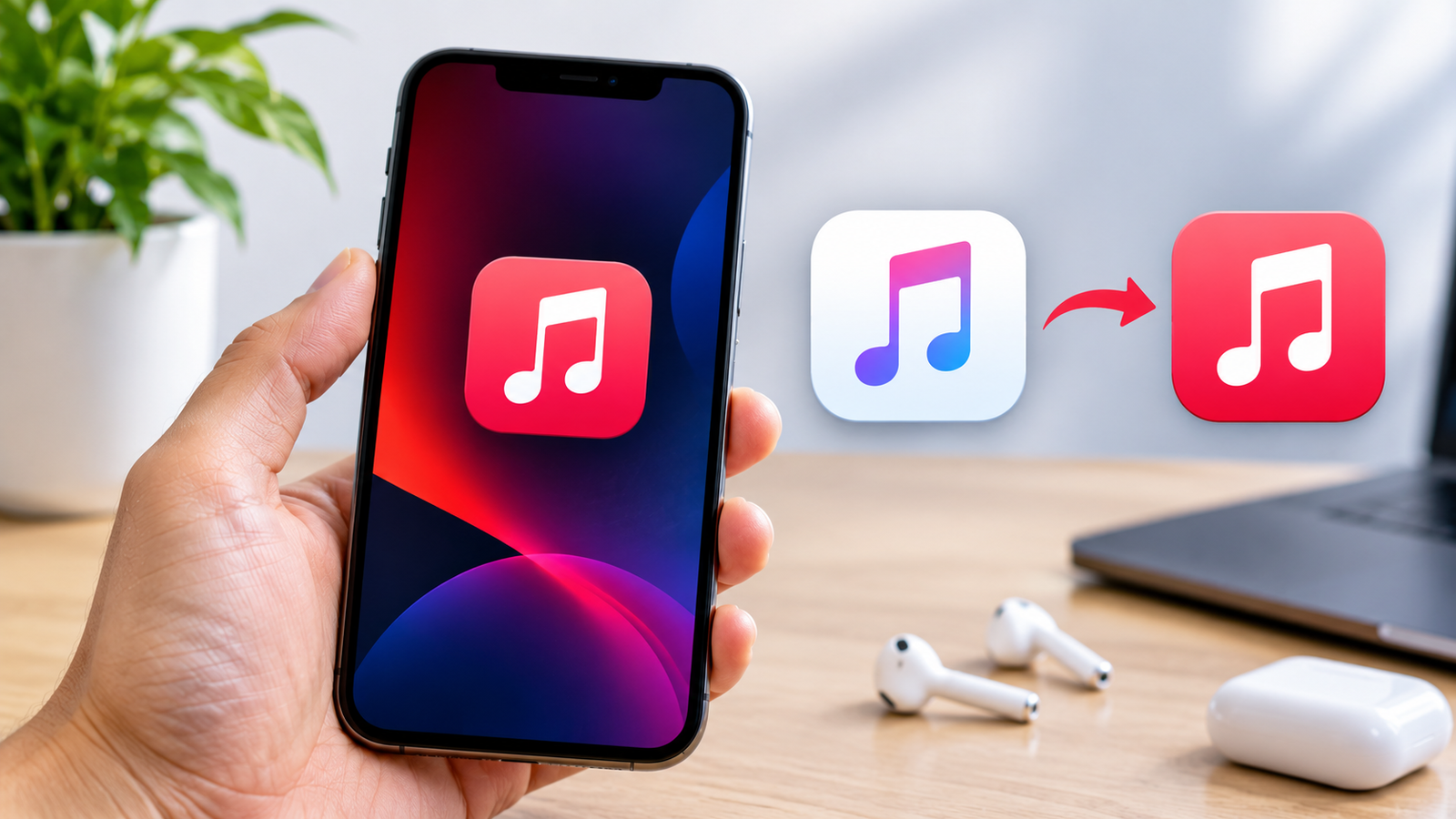
HowToForYou.com – An iOS update can introduce useful improvements, but even a small visual change can disrupt the familiar experience of using an iPhone. The redesigned Apple Music icon in iOS 27.2 is one example. Users accustomed to the traditional red design may find the new white appearance less recognizable or simply prefer the previous look.
Although Apple does not provide a direct setting to restore the original Apple Music icon, there is another way to customize its appearance. The Shortcuts app allows iPhone users to create a Home Screen shortcut with a custom image, making it possible to bring back the familiar red Apple Music design.
The process requires only an image of the old icon and a few adjustments in the Shortcuts app. Once completed, the customized shortcut provides a familiar-looking way to access Apple Music directly from the Home Screen.
Why Has the Apple Music Icon Changed?
Apple Music received a visual redesign as part of the iOS 27.2 update. One noticeable change is the move from its familiar red icon to a predominantly white design.
The updated appearance may fit more closely with other Apple applications, including Calendar and Clock, which also use white icons. However, users who prefer the traditional red branding may find the change less appealing.
The good news is that iPhone users do not have to keep the redesigned appearance on their Home Screen. Apple’s Shortcuts app provides a workaround that lets users assign a different image to an app shortcut.
It is important to understand that this method changes the shortcut’s appearance rather than replacing the original Apple Music application icon throughout iOS.
Can You Restore the Original Apple Music Icon?
Yes. You can recreate the appearance of the original red Apple Music icon by creating a custom shortcut through Apple’s Shortcuts app.
The process involves three basic tasks:
- Saving an image of the old red Apple Music icon to your Photos library.
- Creating a shortcut that opens the Apple Music application.
- Assigning the saved red icon image to that shortcut and adding it to your Home Screen.
Afterward, you can position the customized shortcut wherever you want, including the first page of your iPhone Home Screen.
You do not need a transparent image to complete this process. According to the original instructions, iOS 27 can automatically handle the transparency, so an image with a white background is also suitable.
How to Change the Apple Music Icon Back to Red on iPhone
Restoring the familiar Apple Music appearance takes five steps. Before starting, make sure you have an image of the original red icon saved in your iPhone’s Photos app.
Step 1: Save the Original Red Apple Music Icon
The first step is to obtain an image of the traditional red Apple Music icon.
You can search for the image online or use an existing screenshot. The important thing is to have a sufficiently clear image that can be selected when customizing the shortcut.
If you are using a screenshot, follow these instructions:
- Open an image of the original red Apple Music icon.
- Make sure the icon is large enough to be recognizable.
- Take a screenshot using your iPhone.
- Tap the checkmark icon.
- Select Save to Photos.
The image will now be available in your Photos library.
A transparent background is not required. An image with white space around the icon can also work because iOS 27 can handle the transparency automatically.
Step 2: Create a New Shortcut in the Shortcuts App
Once the red icon image is saved, open Apple’s Shortcuts app.
Follow these steps:
- Launch the Shortcuts app on your iPhone.
- Tap the + button at the bottom of the screen.
- Start creating a new shortcut.
- When prompted to choose an action, type Open Apple Music.
This creates the basic shortcut needed to launch Apple Music.
Step 3: Add the Shortcut to Your Home Screen
After creating the shortcut, the next task is to make it accessible from your Home Screen.
To do this:
- Look for the shortcut name at the top of the editing screen.
- Tap Open Apple Music.
- Find the Add to Home Screen option in the menu.
- Select it to continue.
You will then be taken to the customization screen, where you can choose the image that will represent the shortcut.
Step 4: Replace the Shortcut Image With the Red Icon
This is the most important part of the process because it allows you to use the traditional red Apple Music design instead of the updated white appearance.
Follow these instructions:
- Tap Image on the shortcut customization screen.
- Select Choose Photo.
- Open your Photos library.
- Find and select the red Apple Music icon image saved earlier.
- Tap Choose to confirm your selection.
- Tap the blue checkmark icon to finish.
Your shortcut should now display the red Apple Music image.
Step 5: Position the New Icon on Your Home Screen
After completing the customization, return to your iPhone Home Screen.
You should now see the new Apple Music shortcut displaying the traditional red icon.
If you want to place it in the same position as the original application, follow these steps:
- Press and hold any app icon on your Home Screen.
- Select Edit Home Screen from the menu.
- Move the customized Apple Music shortcut to your preferred location.
- Position it on the first Home Screen page or wherever you normally access Apple Music.
Once everything is arranged, the familiar red Apple Music design will be back on your Home Screen.
What to Know Before Changing the Apple Music Icon
Before customizing your Home Screen, there are a few important details to understand.
The original application remains installed. Creating a shortcut does not replace or uninstall Apple Music. It simply provides another way to access the application.
The new icon uses a saved image. The appearance of the shortcut depends on the picture selected from your Photos library.
The customization is performed through Shortcuts. You do not need to modify iOS system files or change the original application.
You can choose its Home Screen position. After creating the shortcut, you can move it to a location that makes it easier to find.
This approach is useful for anyone who prefers the traditional Apple Music branding but wants to keep using the updated version of iOS.
Frequently Asked Questions (FAQ)
1. Can I change the Apple Music icon back to red on my iPhone?
Yes. You can use Apple’s Shortcuts app to create a shortcut that opens Apple Music and assign the original red icon image to it. You can then add the customized shortcut to your Home Screen.
2. Do I need to download another application to change the Apple Music icon?
No. The process described here uses Apple’s built-in Shortcuts app and the Photos app. You only need an image of the original red Apple Music icon.
3. Do I need a transparent image for the custom Apple Music icon?
No. A transparent image is not necessary. An image with white space around the icon can also be used because iOS 27 can automatically handle transparency.
4. Will changing the Apple Music icon affect the application?
No. The process creates a separate shortcut that opens Apple Music. It does not replace the original application or change its installed version.
5. Can I move the customized Apple Music icon to the first Home Screen page?
Yes. After adding the shortcut, press and hold an app icon, select Edit Home Screen, and move the customized Apple Music shortcut to your preferred position.
6. Can I use another picture instead of the original red Apple Music icon?
Yes. The Shortcuts customization process allows you to select an image from your Photos library. You can use the original red design or another image you prefer.
Conclusion
The redesigned Apple Music icon in iOS 27.2 may not appeal to everyone, particularly users who prefer the traditional red appearance. Fortunately, Apple’s Shortcuts app offers a simple way to customize the Home Screen without replacing the original application.
By saving the old red icon, creating an Apple Music shortcut, and assigning the image to it, you can restore the familiar design in just five steps.
Although this workaround does not change the official Apple Music icon across iOS, it provides a practical way to bring back the appearance you prefer while continuing to use the updated application.
Read More : How to Change Hotspot Name on iPhone and Android