HowToForYou.com – Screen recording has become an essential tool for communication in the digital age. From training new employees to creating tutorials and documenting software issues, the ability to capture what happens on your screen can save time and improve clarity. Windows 10 and Windows 11 users already have access to capable screen recording tools, along with advanced third-party options for more demanding needs.
Here is a structured look at the most effective ways to screen record on Windows today, along with guidance on when each option makes the most sense.
Understand why screen recording matters
Before choosing a tool, it helps to be clear about your goal. Screen recording is commonly used to:
- Create step-by-step tutorials or how-to guides
- Explain workflows without long written instructions
- Capture software bugs or technical issues
- Record presentations, demos, or online meetings
- Support remote collaboration and training
Different use cases call for different tools, especially when audio, editing, or collaboration is involved.
Use Xbox Game Bar for quick application recordings
Xbox Game Bar is built into every Windows 10 and Windows 11 system and is often the fastest way to start recording.
Key features:
- Records a single application window
- Supports microphone and system audio
- Saves recordings automatically as MP4 files
How it works:
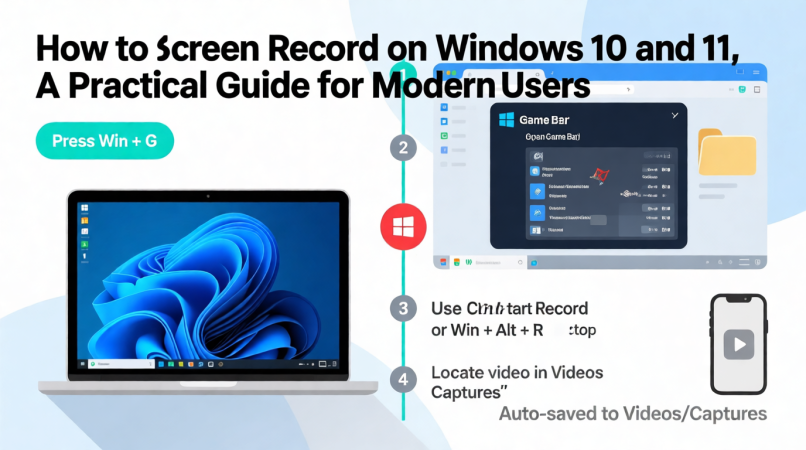
- Open Xbox Game Bar using the Windows + G shortcut
- Adjust capture settings for audio and quality
- Click Record to begin and stop when finished
Limitations to consider:
- Cannot record the desktop or File Explorer
- Only records one app at a time
- Offers no advanced editing tools
This option works best for short, straightforward recordings that do not require post-production.
Use the Windows 11 Snipping Tool for focused screen capture
The Snipping Tool in Windows 11 includes a screen recording feature designed for precision.
Why it stands out:
- Allows manual selection of a specific screen area
- Helps avoid capturing sensitive or irrelevant information
- Ideal for short, visual-only recordings
Basic steps:
- Open Snipping Tool from the Start menu
- Select the Record option
- Choose the area of the screen to capture
- Start and stop the recording, then save the file
Important limitations:
- Does not capture microphone or system audio
- Best suited for brief clips rather than full tutorials
This tool is a good choice when visuals matter more than narration.
Choose third-party software for advanced recording needs
When built-in tools are not enough, third-party platforms can offer a more complete workflow. One example is Descript, which combines recording, editing, and collaboration.
What sets advanced tools apart:
- Screen, webcam, and audio recording in one session
- Automatic transcription of spoken content
- Text-based video editing for faster revisions
- Audio cleanup and visual effects
- Easy sharing and collaboration with teams
These features are especially valuable for educators, content creators, remote teams, and professionals who produce videos regularly.
Decide which tool fits your workflow
There is no single best screen recorder for all Windows users. The right choice depends on how you plan to use your recordings.
- Use Xbox Game Bar for fast, simple application captures
- Use Snipping Tool for silent, cropped screen recordings
- Use advanced software for narrated tutorials, polished demos, and team collaboration
Many users start with built-in tools and move to more advanced options as their needs grow.
Think beyond recording and focus on clarity
Screen recording is no longer just about capturing what happens on your screen. Clear audio, thoughtful framing, and basic editing can significantly improve how your message is received.
As remote work and asynchronous communication continue to expand, screen recordings are becoming a standard way to explain ideas, train teams, and share knowledge efficiently.
Final takeaway
Windows 10 and Windows 11 provide a strong foundation for screen recording, offering free tools that cover everyday needs. For more complex projects, third-party software can turn simple recordings into polished, reusable content.
By choosing the right tool for the task, Windows users can create clearer, more effective screen recordings without unnecessary complexity.