HowToForYou.com – In today’s connected world, your computer quietly records more than just the websites you visit. From downloaded files to recently opened documents and even app usage, your device maintains a detailed trail of activity. Understanding how to access this information can help you improve productivity, monitor usage, or troubleshoot issues.
This guide explains how to check your computer history across multiple areas, including browsers, files, and system activity, on both Windows and Mac.
Why Checking Your Computer History Matters
Many users associate “history” with web browsing alone. In reality, your system logs several types of activity:
For You :
- Websites visited and search queries
- Files downloaded from the internet
- Recently opened or edited documents
- System-level activity tied to your account
- Application usage patterns
Reviewing this data can help you recover lost files, identify unauthorized access, or simply retrace your steps during work.
How to Check Browser History
Your web browser keeps a record of every site you visit unless you use private browsing.
Steps:
- Open your browser (such as Chrome, Edge, or Firefox).
- Press Ctrl + H (Windows) or Command + Y (Mac).
- Alternatively, open the browser menu and select History.
What You’ll See:
- A chronological list of visited websites
- Grouped entries by date
- Sometimes synced activity across devices (if logged into an account)
This is the fastest way to revisit previously viewed pages or confirm browsing activity.
For You :

How to Check Download History
Download history shows files you’ve saved from the internet, even if you’ve moved or deleted them later.
Steps:
- Open your browser.
- Press Ctrl + J (Windows) or access the Downloads section from the menu.
- On Mac, use the browser’s download icon or menu options.
What You’ll See:
- Recently downloaded files
- File names, sizes, and download dates
- Options to reopen or locate files
This is especially useful when you can’t remember where a file was saved.
How to View Recently Opened Files (Windows)
Windows keeps a record of files you’ve accessed recently, regardless of their location.
For You :
Steps:
- Press Windows + R to open the Run dialog.
- Type Recent and press Enter.
What You’ll See:
- A folder containing shortcuts to recently opened files
- File details such as type and last modified date
This feature is helpful for quickly reopening documents without searching manually.
How to Check Activity History on Windows
Windows 10 includes a built-in activity tracking feature linked to your Microsoft account.
Steps:
- Press Windows + I to open Settings.
- Go to Privacy → Activity History.
- Select Manage my Microsoft account activity data.
What You’ll See:
- Browsing and search activity
- App usage data
- Location and voice interactions (if enabled)
Important Note:
Some newer Windows versions have reduced or removed this feature from system settings, shifting activity tracking to online account dashboards instead.
For You :
How to Track App Usage on Mac
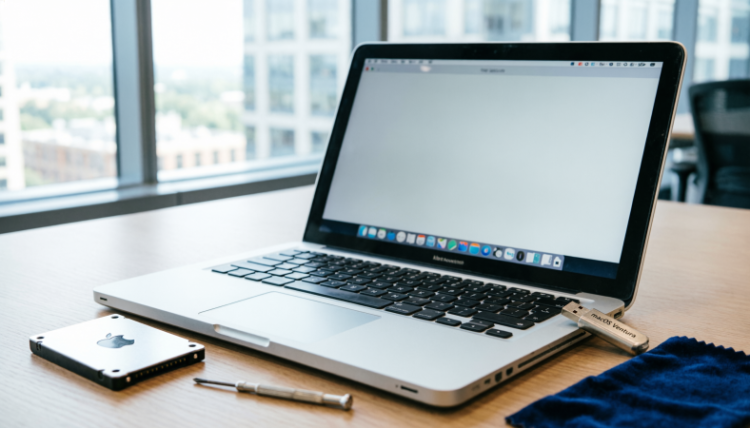
Mac computers offer a built-in tool called Screen Time to monitor app and website usage.
Steps:
- Open System Settings.
- Select Screen Time.
- Click App & Website Activity.
What You’ll See:
- Daily and weekly app usage reports
- Time spent on specific applications
- Website activity (in supported browsers)
You can also filter data by device or user if Family Sharing is enabled.
Key Differences Between Windows and Mac Tracking
While both systems provide activity insights, they approach tracking differently:
For You :
- Windows focuses more on file access and account-based activity
- Mac emphasizes usage patterns and screen time analytics
- Windows offers quick access via system folders, while Mac centralizes data in settings
Understanding these differences helps you navigate each system more efficiently.
Tips for Managing and Protecting Your History
- Regularly review activity logs to spot unusual behavior
- Clear history when needed for privacy or shared devices
- Use private browsing modes to prevent history from being saved
- Secure your account with strong passwords and authentication
The Bottom Line
Learning how to check your computer history goes beyond simple curiosity. It gives you visibility into how your device is used, helps recover important information, and strengthens your digital awareness.
By exploring browser logs, download records, file access, and system activity, you gain a clearer picture of your computer’s day-to-day operations—and more control over your data.
For You :