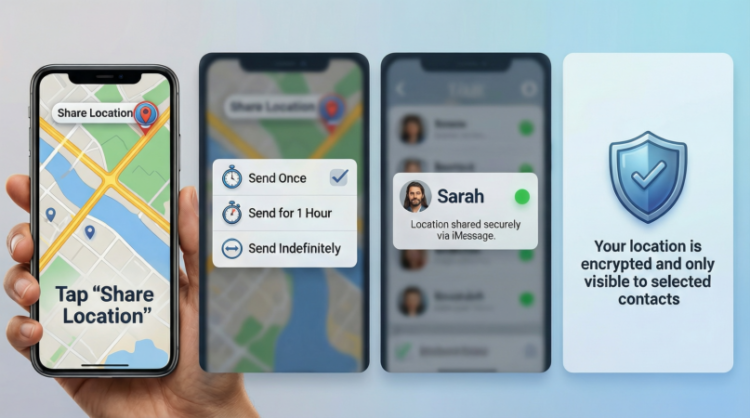

Table of contents:
- Why iPhone Location Sharing Matters
- Understanding Your Location Sharing Options
- How to Share Your Current Location Once
- How to Share Location While You Are on the Way
- How to Share Your Live Location in Real Time
- What Others Can See When You Share Location
- Advanced Features in Newer iPhones
- How to Stop Sharing Your Location
- Use Safety Check if Your Security Is at Risk
- Tips for Safer Location Sharing
- Final Thoughts
HowToForYou.com – Sharing your location from an iPhone has become a practical tool for everyday life. From letting family know you arrived safely to coordinating meetups with friends, Apple’s location-sharing features are designed to balance convenience with privacy. With recent iOS updates, users now have more control over how long their location is shared, who can see it, and what details are revealed.
This guide explains how to share your location on iPhone, the different methods available, and what to consider before turning the feature on.
Why iPhone Location Sharing Matters
Location sharing is no longer limited to emergencies. Many people use it to:
For You :
- Confirm safe arrival after a long trip
- Track progress when meeting someone in a crowded area
- Coordinate family schedules
- Stay connected during outdoor activities or travel
Apple has built these tools directly into core apps such as Messages, Maps, and Find My, which means users do not need third-party software to stay connected.
Understanding Your Location Sharing Options
Before learning how to share your location, it helps to understand the three main methods Apple offers. Each serves a different purpose.
1. Share Your Location Once
This option sends a single snapshot of your current position. It does not update as you move.
For You :
Best for:
- Letting someone know where you are right now
- Sending directions to your current spot
- Quick check-ins without ongoing tracking
Once shared, the recipient cannot follow your movement.
2. Share Your Location While Traveling
If you are on the way to a destination, your iPhone can temporarily share your live progress.
For You :

This includes:
- Estimated time of arrival
- Real-time movement during navigation
- Automatic notifications when you arrive
This option is commonly used when driving, walking, or cycling to a destination.
3. Share Ongoing Live Location
Live Location allows trusted contacts to see your real-time location continuously.
For You :
You can choose to share for:
- One hour
- Until the end of the day
- Indefinitely
This method is typically used among close family members or partners.
How to Share Your Current Location Once
If you only need to show where you are at a specific moment, this is the simplest method.
For You :
Using Messages
- Open a conversation or start a new one
- Tap the plus button next to the text field
- Select Location
- Choose Send Pin or Send My Current Location
The recipient receives a map pin showing your position at that moment only.
Using Maps
You can also drop a pin directly in Apple Maps and send it through Messages or another app. This works well when you want to highlight a precise meeting point rather than your live movement.
How to Share Location While You Are on the Way
When traveling, iPhone offers two reliable options.
For You :

Share ETA in Apple Maps
- Open Maps and start navigation
- Swipe up from the bottom of the screen
- Tap Share ETA
- Select a contact
While navigation is active, your live progress and expected arrival time are visible. Sharing automatically stops once you reach your destination.
Use Check In in Messages
Check In is designed for personal safety rather than continuous tracking.
With Check In:
For You :
- Your location is not shared immediately
- A trusted contact is notified only if something goes wrong
- If you do not arrive on time or stop responding, your iPhone can share your location, battery level, and signal status
This feature is especially useful for late-night travel or long-distance trips.
How to Share Your Live Location in Real Time
For ongoing tracking, Live Location is the most complete option.
Using Find My
- Open Find My
- Tap the Me tab and enable Share My Location
- Go to the People tab
- Tap Add and choose a contact
- Select how long you want to share
Family Sharing members may already appear automatically.
For You :
Using Messages
- Open a conversation
- Tap the plus button and select Location
- Choose Share Live Location
- Set the duration
Once enabled, recipients can view your movement in real time and open directions directly from the map.
What Others Can See When You Share Location
Depending on the method you choose, contacts may be able to:
- View your live position on a map
- See your direction of travel and approximate speed
- Get directions to your location
- Receive arrival or departure notifications
They can also set location-based alerts, such as being notified when you arrive home. For recurring alerts, your approval is required.
For You :
Advanced Features in Newer iPhones
Recent iPhone models introduce additional capabilities:
- Satellite location sharing in areas without cellular or Wi-Fi coverage
- Precision Finding on iPhone 15 and later for extremely accurate location tracking
- Cross-app visibility, allowing contacts to view your location in Find My, Maps, and Contacts
These features are especially helpful during travel or outdoor activities.
How to Stop Sharing Your Location
Apple allows you to stop sharing at any time.
For You :
Stop Sharing With Everyone
- Open Find My
- Tap the Me tab
- Turn off Share My Location
This pauses all location sharing until you turn it back on.
Stop Sharing With One Person
You can remove a single contact without affecting others.
- In Find My, select the person and tap Stop Sharing My Location
- In Messages, tap the conversation name and choose Stop Sharing
- In Maps, tap Sharing With, then remove the contact
The person is not notified when sharing ends.
For You :

Use Safety Check if Your Security Is at Risk
Safety Check is an emergency privacy feature designed for personal protection.
It allows you to:
- Instantly stop sharing your location
- Review which people and apps have access
- Reset permissions in seconds
This feature is especially important in situations involving personal safety concerns.
For You :

Tips for Safer Location Sharing
To stay in control of your privacy:
- Share live location only with people you trust
- Use time-limited sharing instead of indefinite access
- Review sharing settings regularly
- Keep your iPhone updated to the latest iOS version
These small steps can significantly reduce privacy risks.
Final Thoughts
Knowing how to share your location on iPhone can make everyday communication easier and safer. Apple’s approach gives users flexibility, whether they want to send a quick location pin, share progress during a trip, or stay connected through live tracking.
For You :

By understanding the differences between one-time sharing, travel updates, and ongoing location access, you can choose the option that fits your situation without giving up control. With the right settings in place, location sharing becomes a helpful tool rather than a privacy concern.